Run a live coaching session
Start a client’s workout from the dashboard, log sets as they happen with prefilled loads and rest timers, and finish with notes the client sees.
Trainnode team
1 min read
During a PT session you log the workout, not the client. The live session view runs on a laptop or tablet next to the rack, and syncs with the client's app in real time: if they log a set on their phone, you see it too.
Start the workout
Open the client and choose Start workout, then pick the assigned workout. If a workout is already running, the button reads Open workout and takes you back to it.
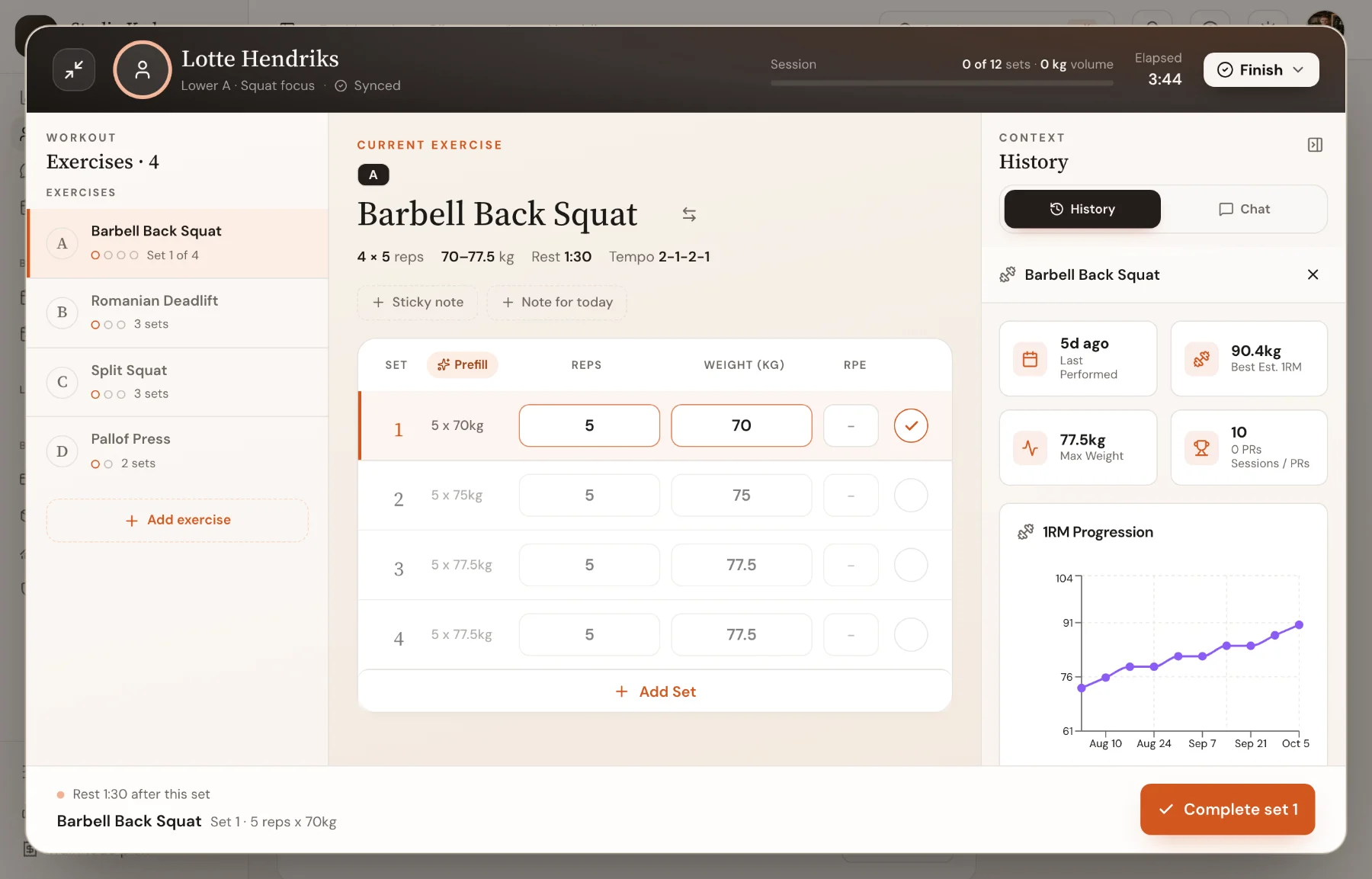
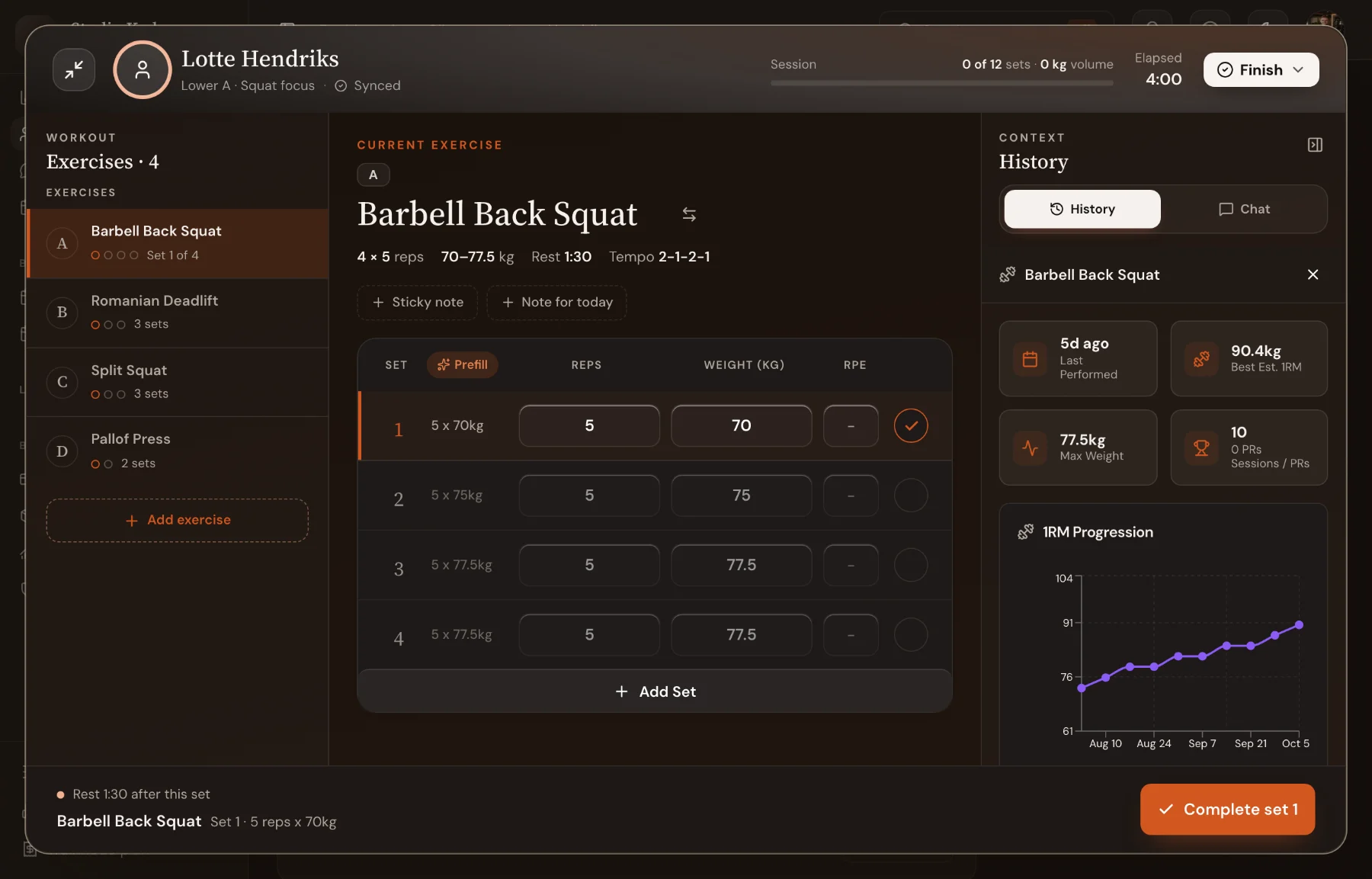
A full-screen view opens: the exercises on the left, the current exercise in the middle, and history and chat on the right.
Log each set
Each set shows the target and what the client did last time. Prefill copies last session's loads, rounded to what your equipment allows. Change reps or load if needed and choose Complete set.
The rest timer starts by itself and shows what's next. On the right, History shows the client's estimated 1RM, best weight and progression for this exercise, so you can decide on the next load without leaving the screen.
Coach more than one client
Running a small group of PT clients at once? Start a workout for each. A strip at the top lets you switch between them, and the minimise button turns a session into a floating bar while you do something else in the dashboard.
Finish and review
Choose Finish. Add a rating, the location and a note for the client. You land on the session page, where you can leave feedback per exercise. The client sees it in their app.

 Book 30 minutes with Coach David