Assign a workout to a client
Pick a workout template, adjust sets and loads for one client, link it to a training phase and assign it so it appears in their app.
Trainnode team
1 min read
A workout template is a session you reuse, such as Lower A · Squat focus. Assigning it gives one client their own copy, with loads that fit them. They see it in the app straight away. To plan several weeks or phases at once, use the plan builder instead.
To write a workout just for one client, open the client, go to Training plan and choose + Workout. The builder opens with that client already picked.
Open the template and choose Assign
Go to Workout templates and find the workout under Studio or Mine. Open the row's ⋯ menu and choose Assign to a client, or open the template and choose Assign to Client. No template yet? Choose New template first, or ask the AI to draft one from a short description and edit the result. Archived templates don't show up when you assign.
Pick the client and the phase
Under Client selection, choose Select client and search by name. Recent shows what this client did lately, so you can see their last loads.
Link the workout to a training phase if the client has one. Under Target completions, set how many times it should be done, or leave it empty for no limit.
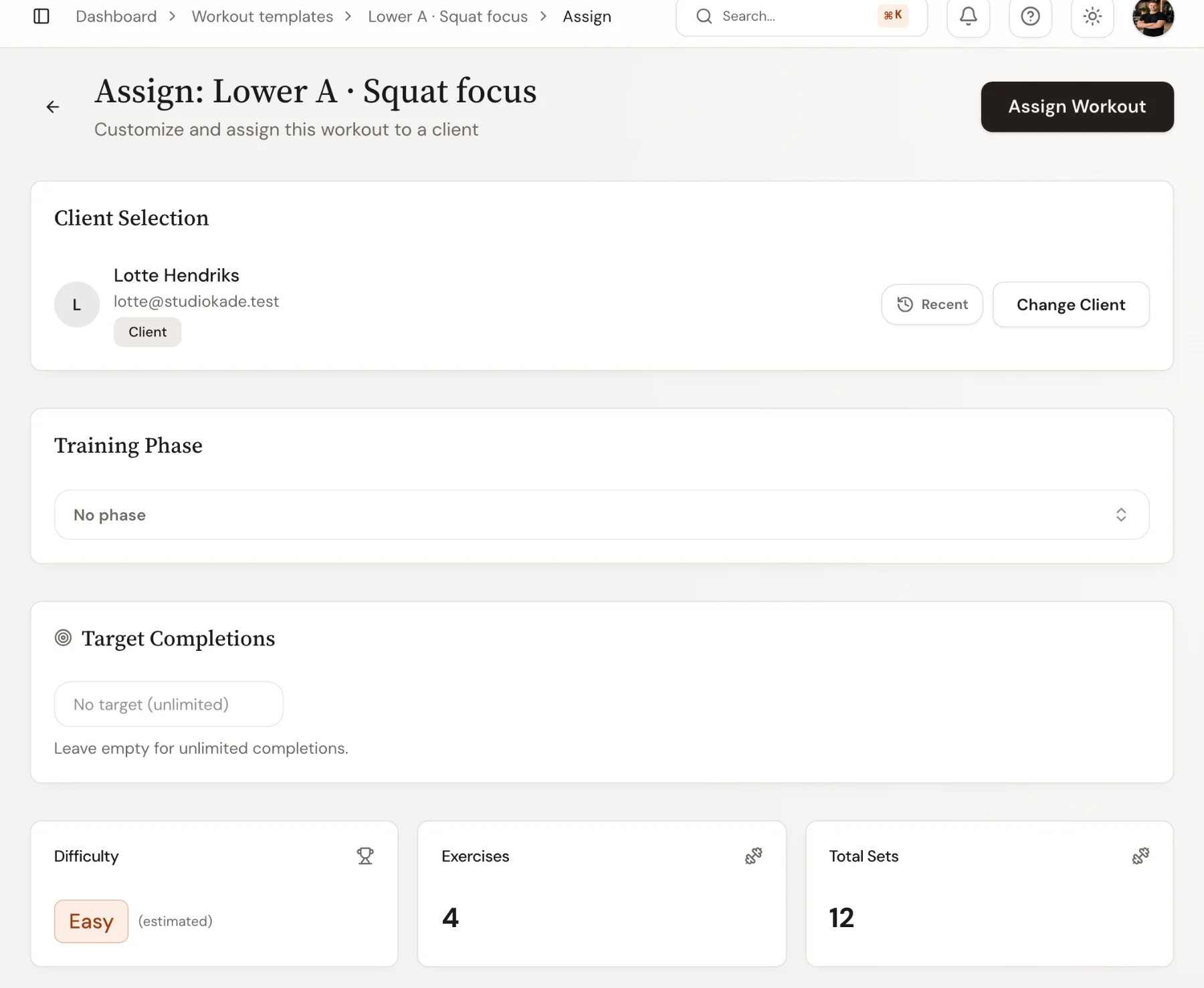
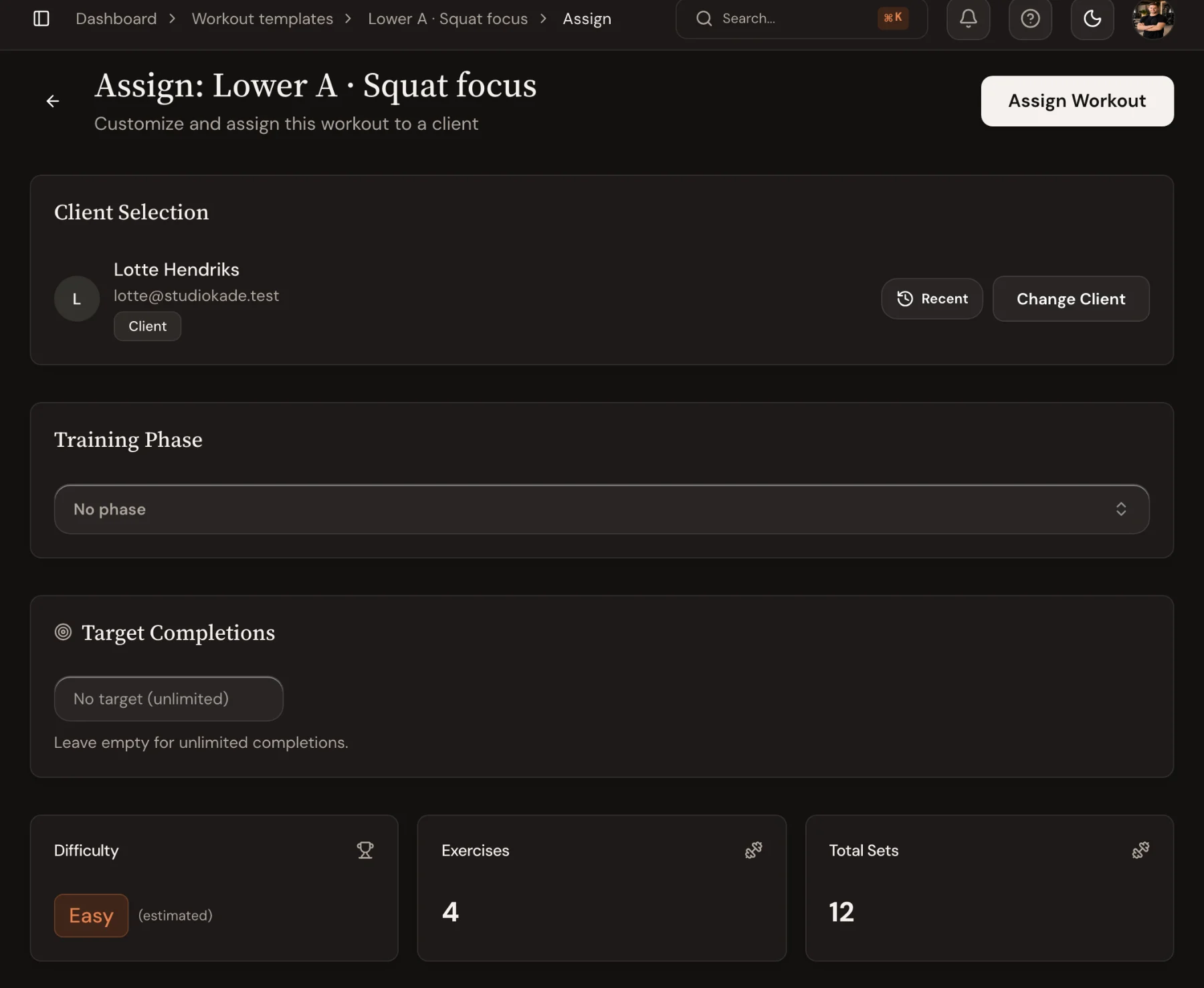
Adjust it for this client
Below, every exercise can be changed for this client only: sets, reps, load, rest, tempo and RPE. Swap an exercise, group two into a superset, or add a note the client reads before they start. Apply to all sets rest or RPE for every exercise at once.
Changes here don't touch the template.
Assign
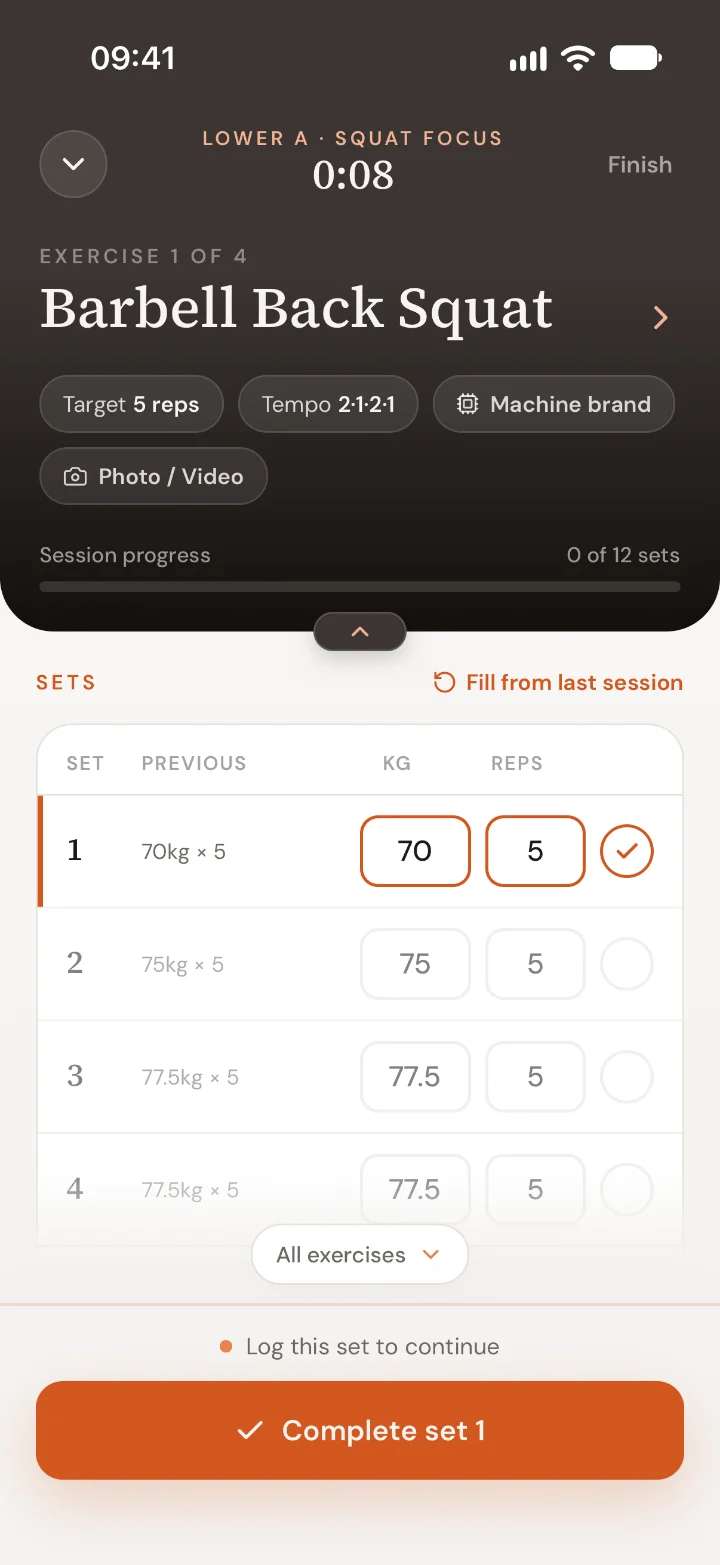
Choose Assign workout. The client sees it under Workouts in the app, with your loads prefilled and a rest timer between sets. If you change the assigned workout later, the app updates too.

 Book 30 minutes with Coach David