Set up online booking for PT sessions
Create session types, set each coach’s hours and your cancellation rule, so clients can book personal training in the Trainnode app.
Trainnode team
2 min read
Clients book in the Trainnode app from what you set up here: which sessions exist, which coach offers them, and when that coach works. Do it once for the studio. Coaches can then fine-tune their own hours.
If you don't see Booking setup in the sidebar, booking isn't on for your studio yet. Ask us through the Help button in your dashboard.
Create a session type
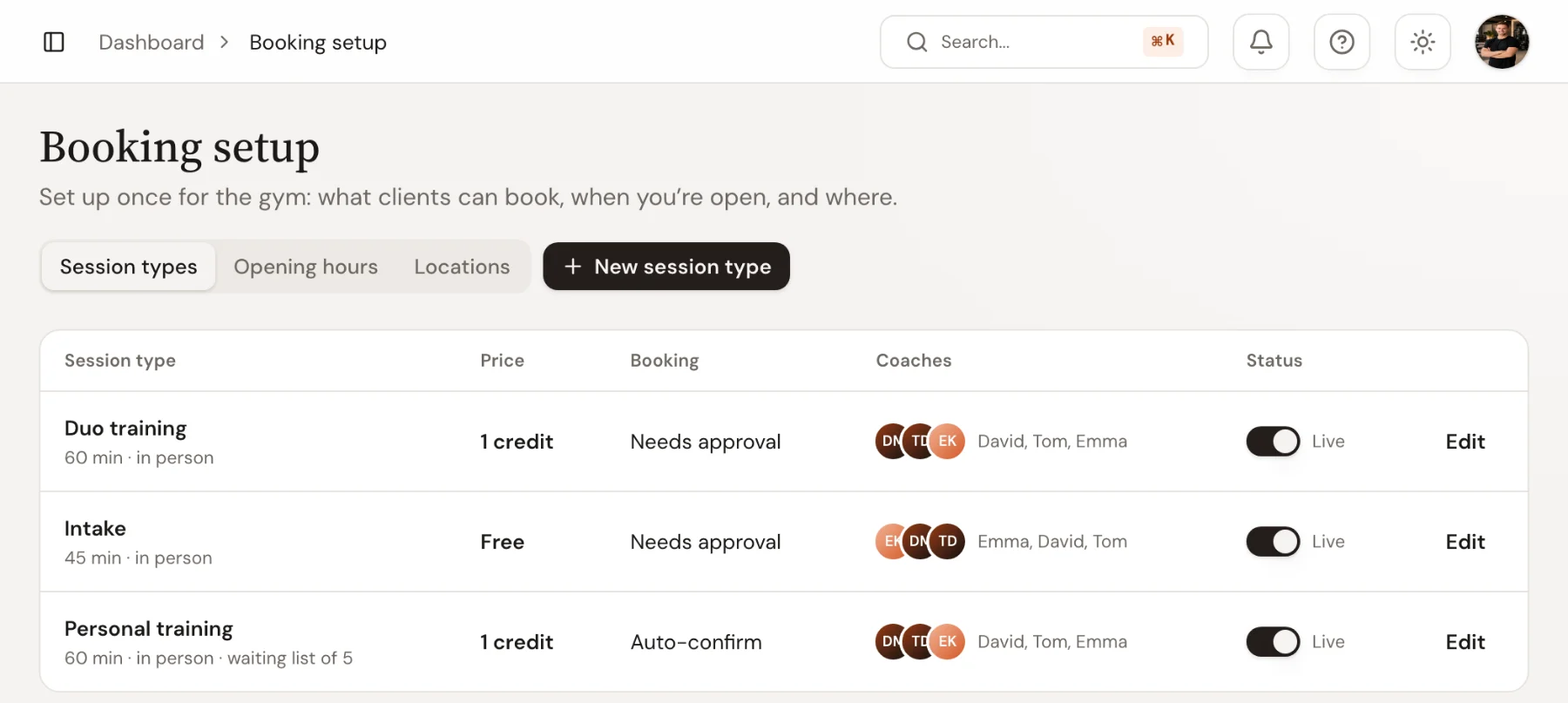
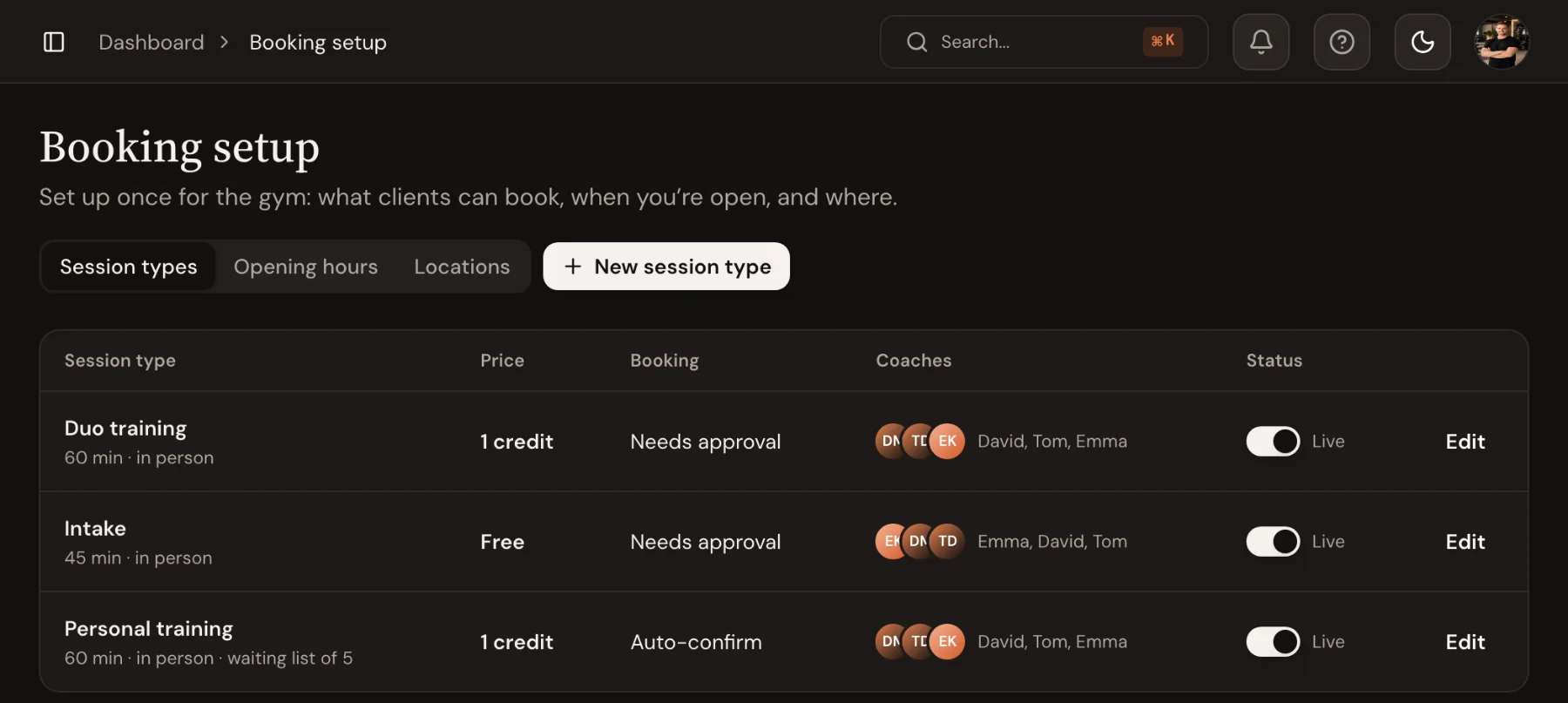
Open Booking setup and choose New session type. A session type is what clients pick in the app, such as Personal training, Duo training or Intake.
Give it a name, a duration and a format (in person, online or hybrid), and under Who offers this? pick the coaches.
Choose how clients pay
Under Access & pricing, choose one of four options:
- Costs credits: uses credits from a pack or membership. One credit per session is usual.
- Members only: no charge per session, only clients with a membership can book.
- Paid per session: the client pays a price when they book.
- Free: anyone at your studio can book it, which works well for an intake.
Credits and paid sessions need payments set up first. See Sell a session pack or membership.
Set the booking rules
Under Booking rules, decide:
- When a client books: Auto-confirm, or Coach approves each request.
- Minimum notice: how close to the start clients can still book.
- Bookable up to: how many days ahead.
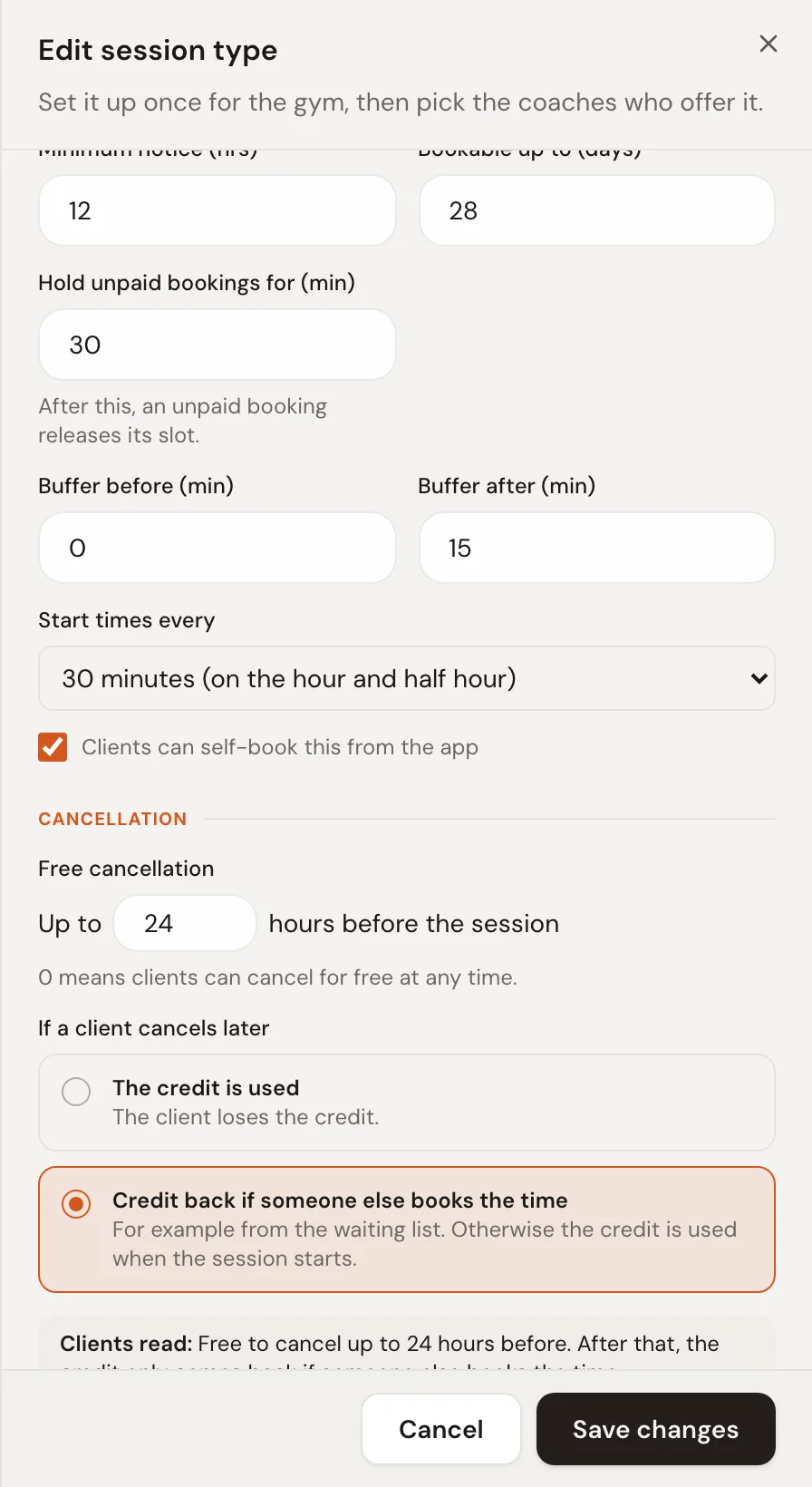
- Buffers before and after, and start times every 15, 30 or 60 minutes.
These are the studio defaults. Each coach can change approval, notice, booking window, buffers and start times for themselves.
Set the cancellation rule
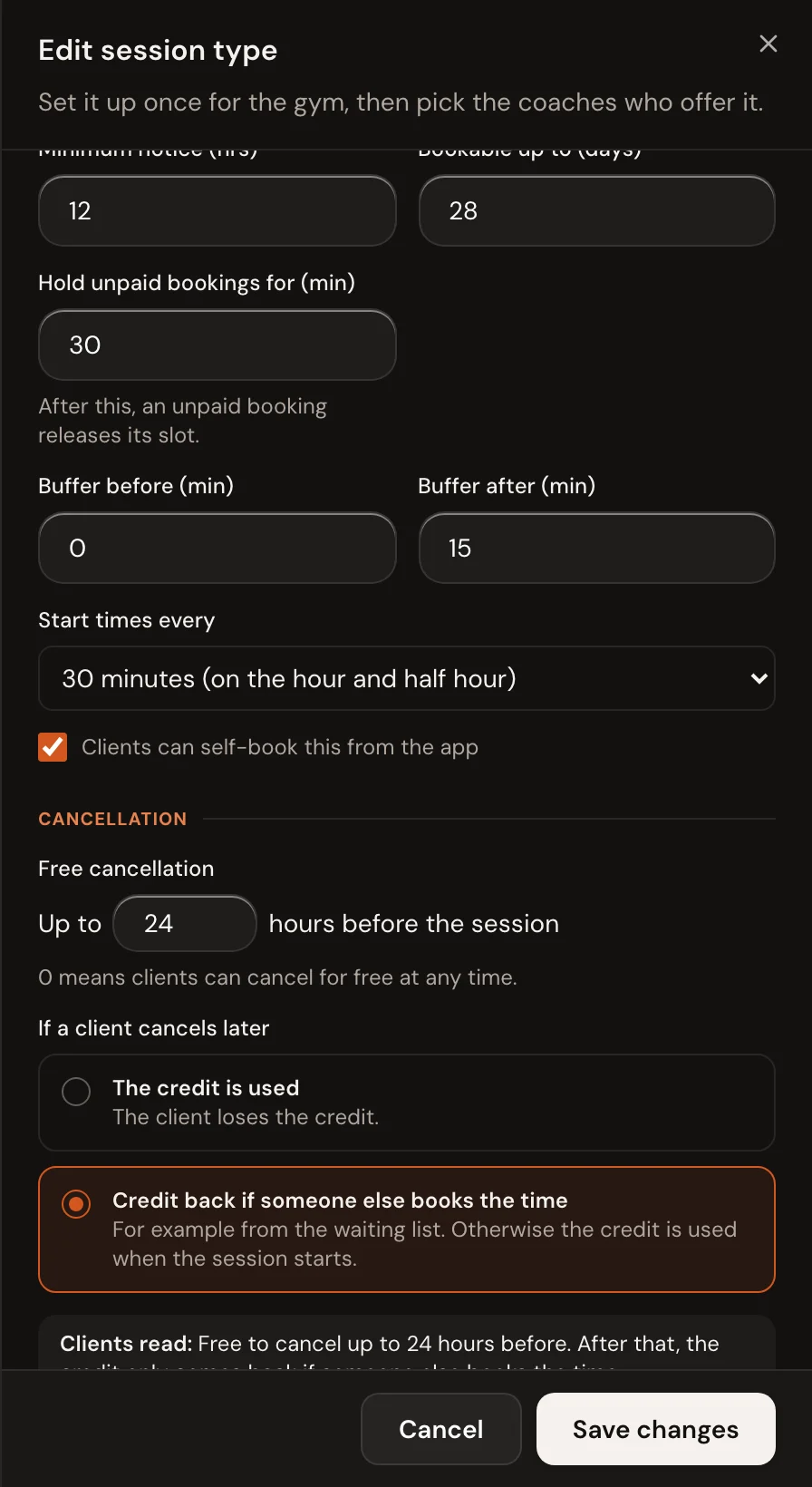
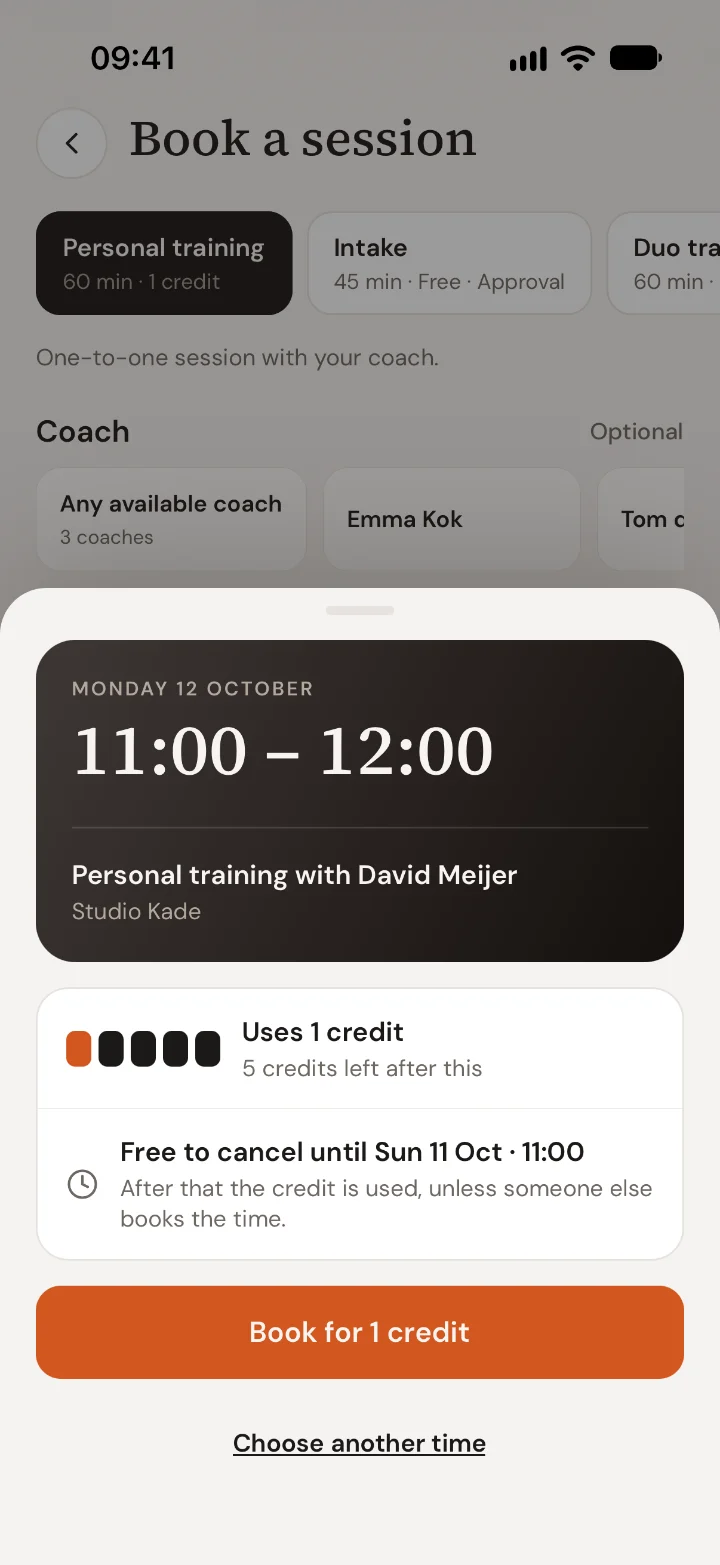
Under Cancellation, set how many hours before the session clients can cancel for free, and what happens after that: the credit is used, or the credit comes back only if someone else books the time.
The Clients read line shows the rule exactly as the app will show it. Not sure what to choose? Read No-show and late cancellation policy for PT studios.
You can also turn on a waiting list, so clients can wait for a full time and get it when someone cancels.
Add each coach's hours
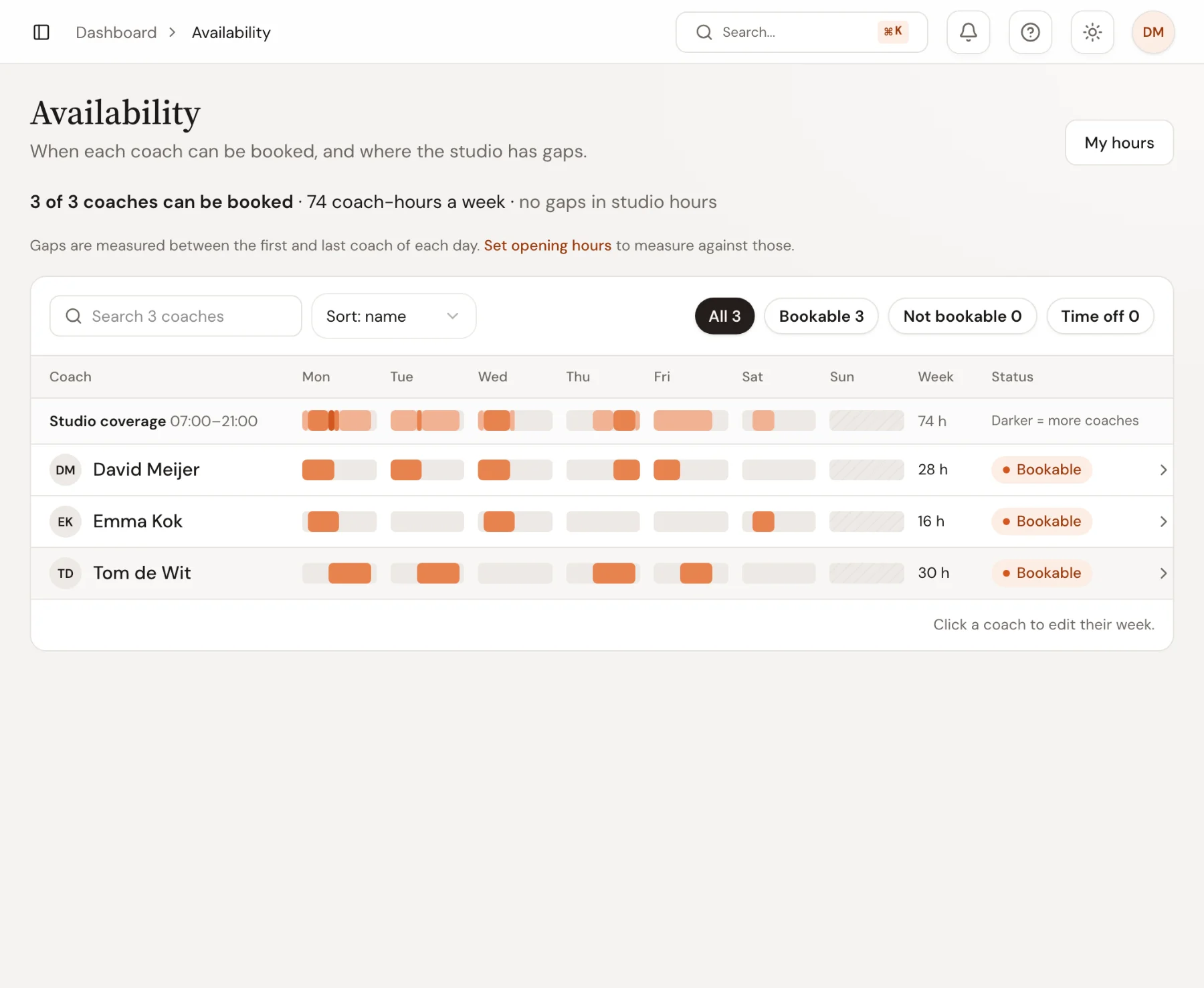
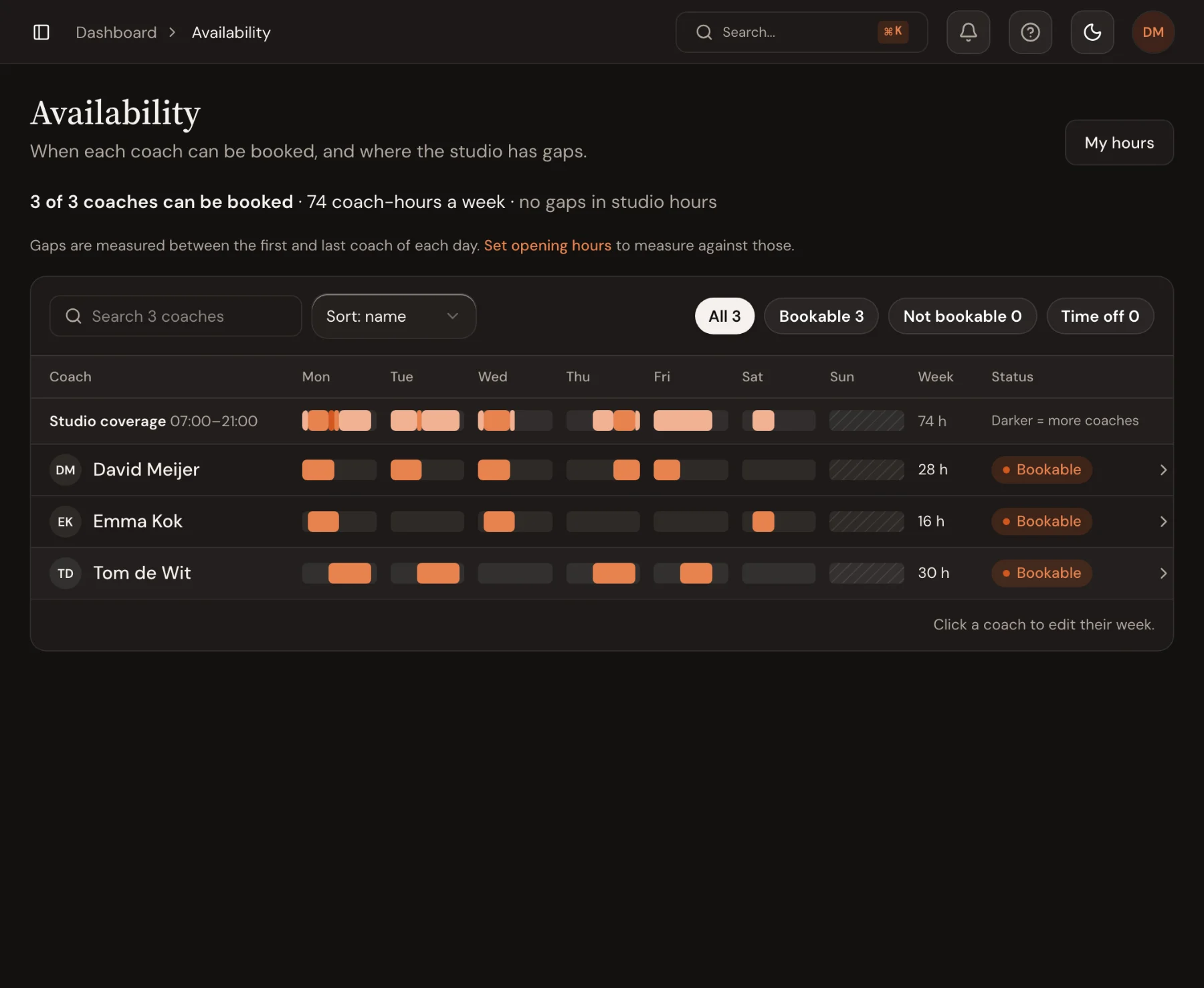
Open Availability in the sidebar. The team view shows every coach's week as one row, with the studio's coverage on top, any gaps in your opening hours, and how many coach-hours clients can book. With a big team, search for a coach or filter on Not bookable.
Click a coach and drag on a day to add the hours they can be booked. Select a block to move, resize or copy it. Use the arrows next to the coach's name to go through the team one by one.
See it from the client's side
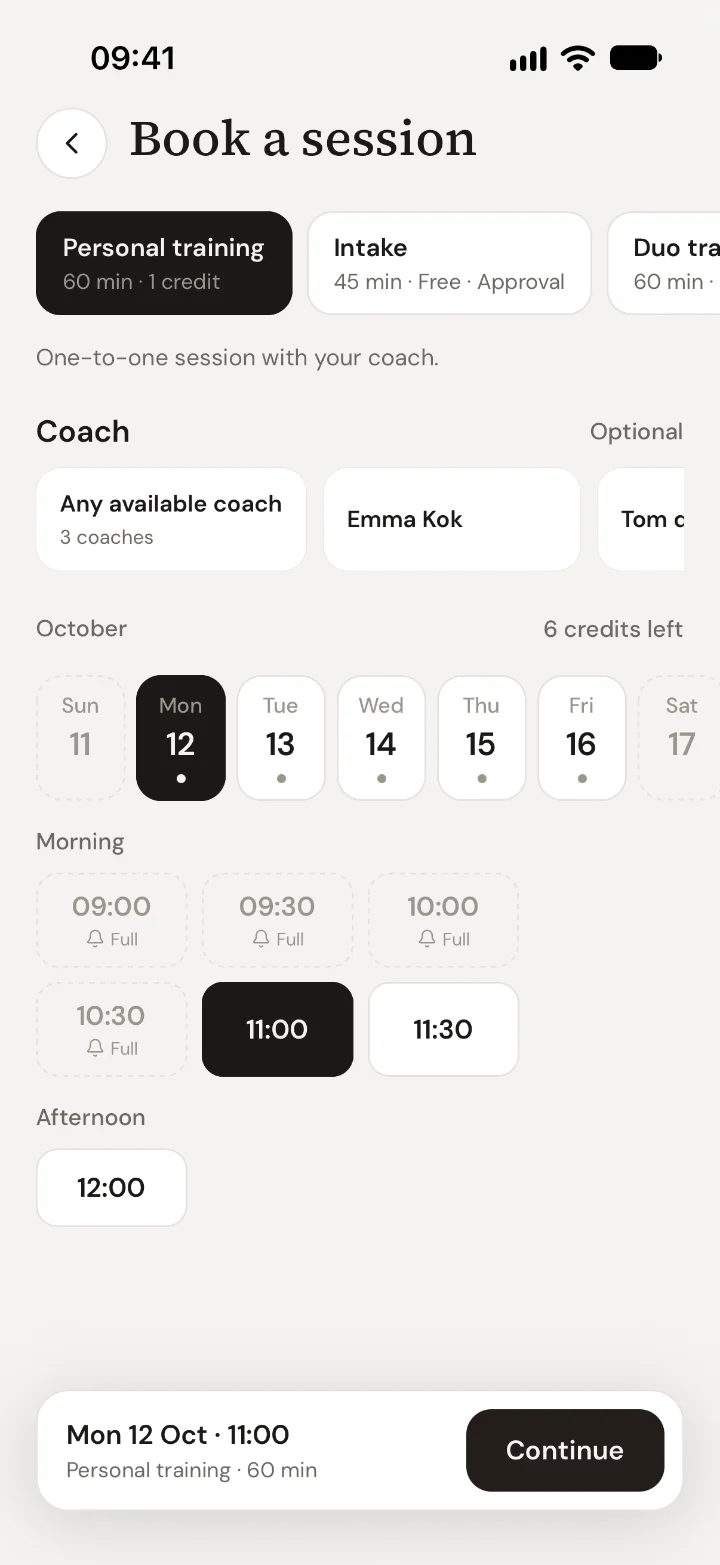
Clients open Sessions in the app, choose See all times, and pick a session type, a coach (or any available coach), a day and a time. Before they confirm, the app shows what it costs and your cancellation rule.
Handle requests
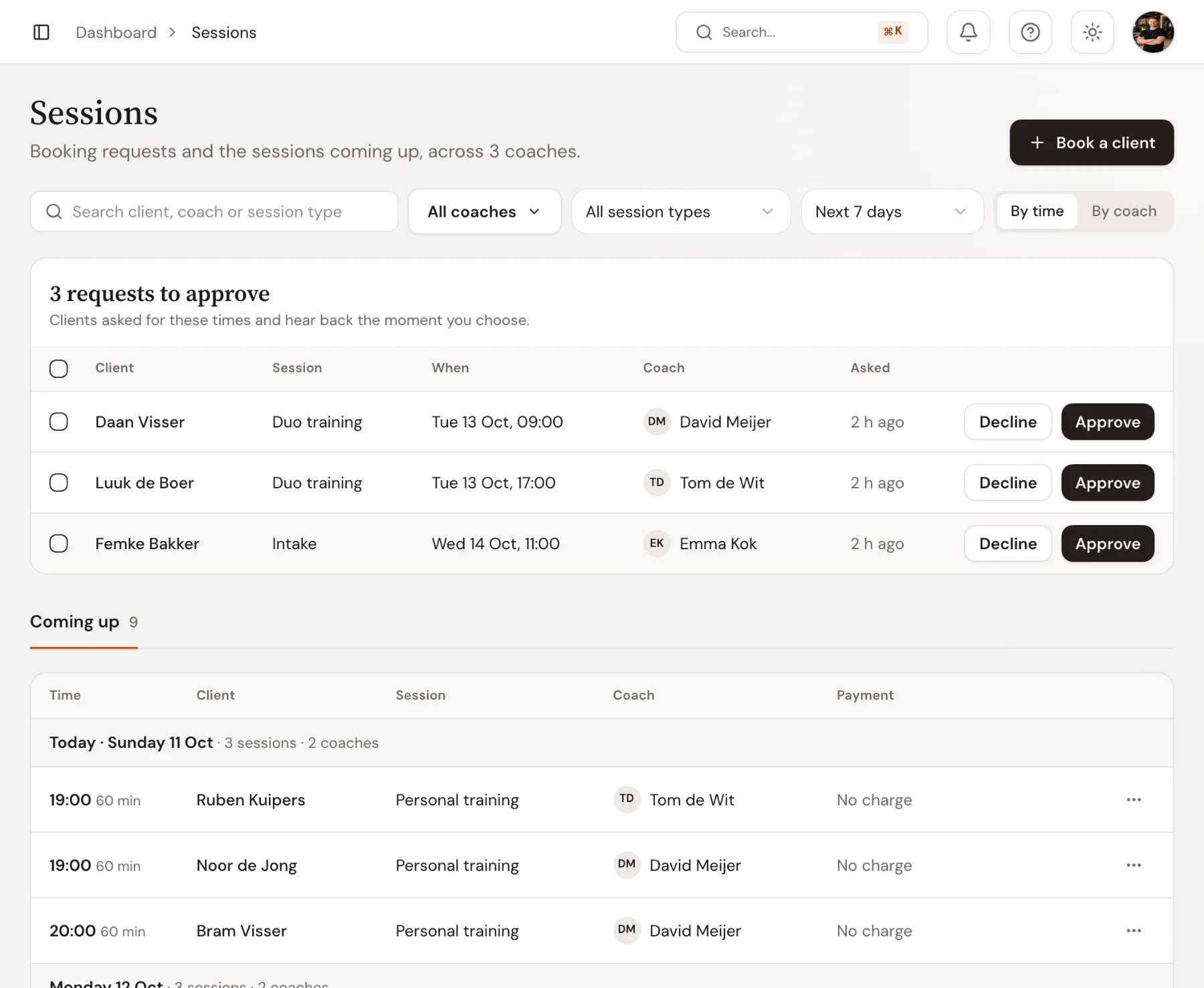
For session types that need approval, requests appear under Sessions in the dashboard. Approve or decline each one. The client gets a notification either way.
Troubleshooting
A client says there are no times available
Check that the coach is selected under Who offers this? on the session type and has hours under Availability, and that the minimum notice isn't longer than the gap to the next free hour.
The credits option is missing
Credits and paid sessions need payments to be set up for your studio. Until then, session types can be free or members only.
Can one coach work different hours at two locations?
Yes. Add the location under Booking setup › Locations, then pick it before dragging hours on the Availability page.

 Book 30 minutes with David