Block time off for a coach
Stop clients booking a coach during a holiday, course or sick day, without changing their weekly hours in Trainnode.
Trainnode team
1 min read
Time off blocks a date range so clients can't book a coach, without touching the coach's normal weekly hours. When the time off ends, the usual hours apply again by themselves.
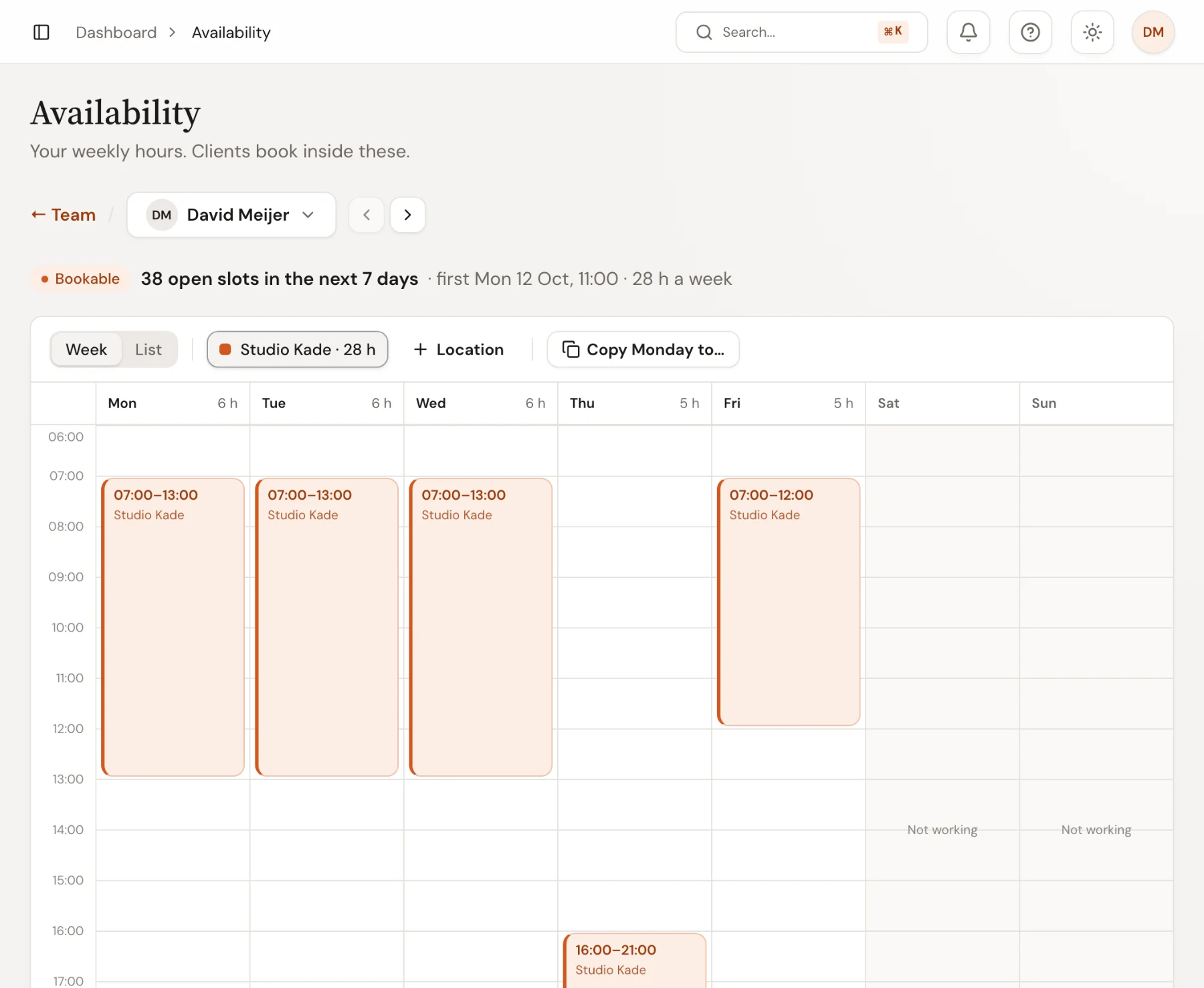
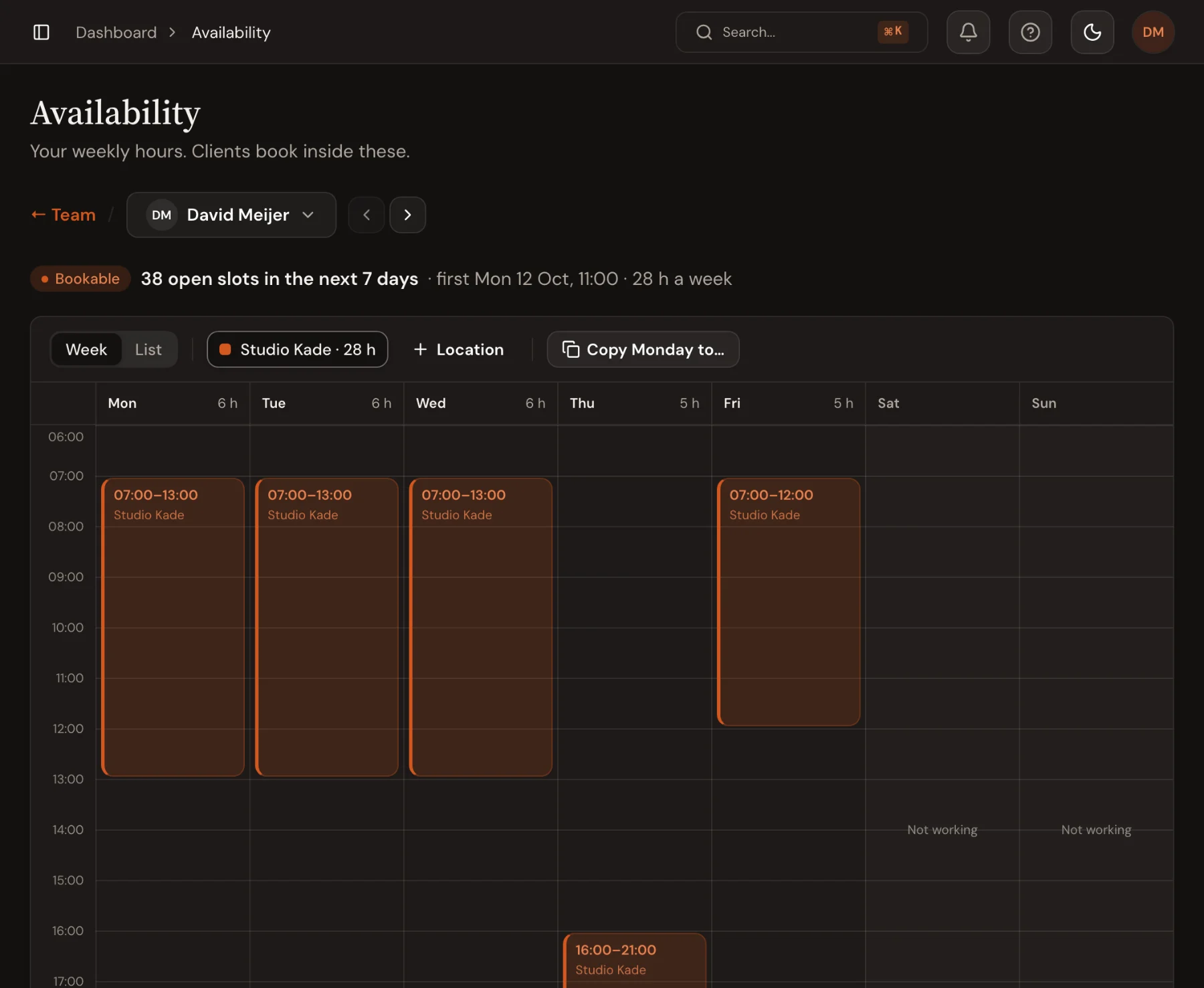
Open the coach's hours
Go to Availability. Coaches see their own hours straight away. Admins click the coach in the team list, or search for them; My hours opens your own.
Add the time off
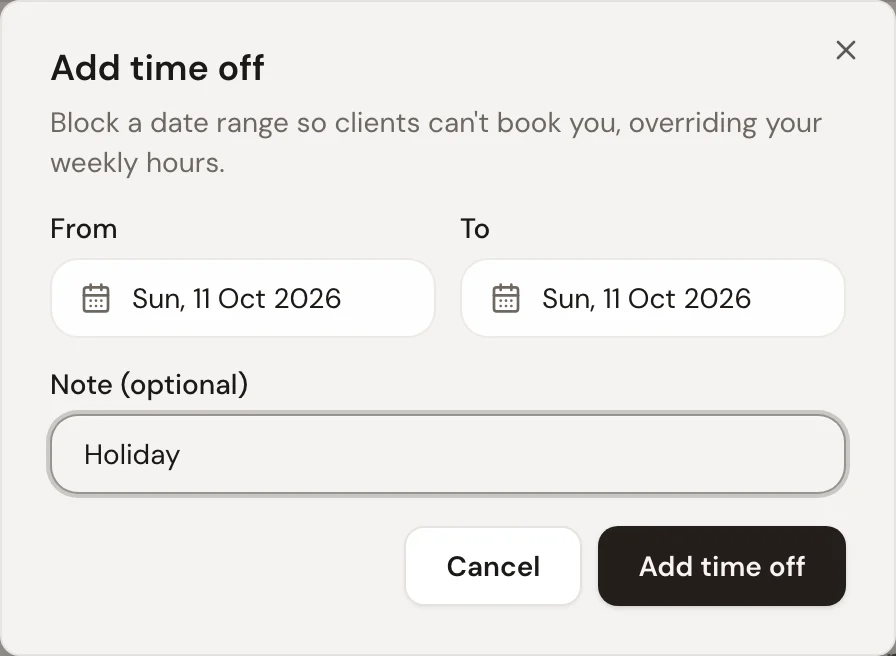
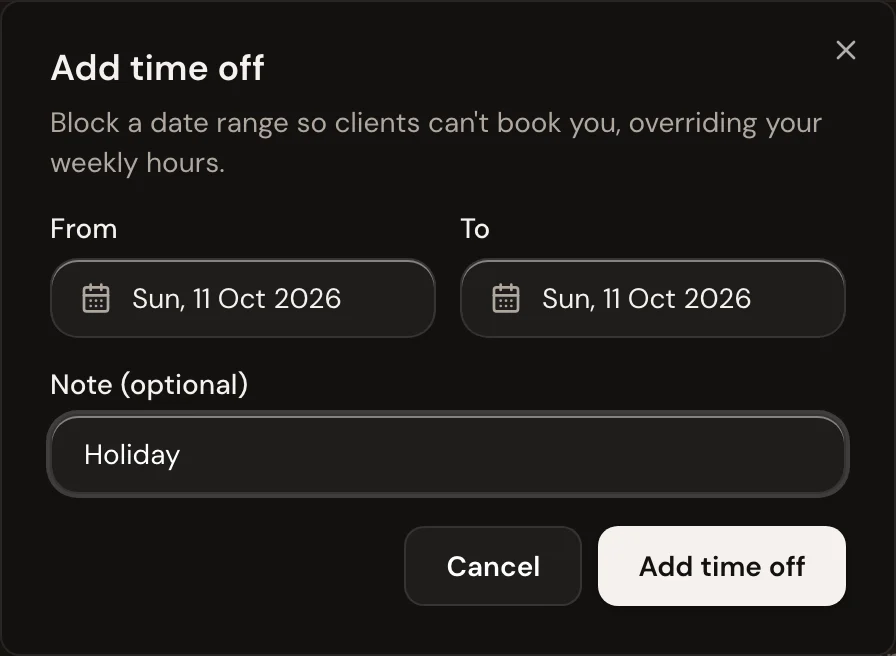
In the Time off card below the week, choose Add. Pick the first and last day, add a note such as Holiday if you like, and choose Add time off.
Check sessions already booked
Time off stops new bookings. Look at the coach's days in Calendar for sessions that were booked before, and move or cancel them. When the studio or a coach cancels, the client always gets their credit or money back.
Good to know
- To change hours for good, such as a coach who stops working Fridays, edit the weekly hours instead of adding time off.
- Remove time off from the same card if plans change. The hours open up again straight away.
- Let clients know in Messages when their regular coach is away, and suggest a colleague for those weeks. Clients book more easily with a name and a time than with a gap in the calendar.

 Book 30 minutes with David