Approve or decline booking requests
Where booking requests appear in Trainnode, how to approve or decline them, and when to let clients book without approval instead.
Trainnode team
1 min read
Session types set to Coach approves don't go straight into the calendar. The client sends a request, and the coach decides. Use it for sessions where you want a say, like an intake or duo training. For regular PT sessions, Auto-confirm saves everyone time.
See what's waiting
Requests show up in three places:
- Needs you on the overview, with the client's name and the time they asked for
- At the top of Sessions in the dashboard, above the schedule
- The coach's Calendar in the app, so you can answer between sessions
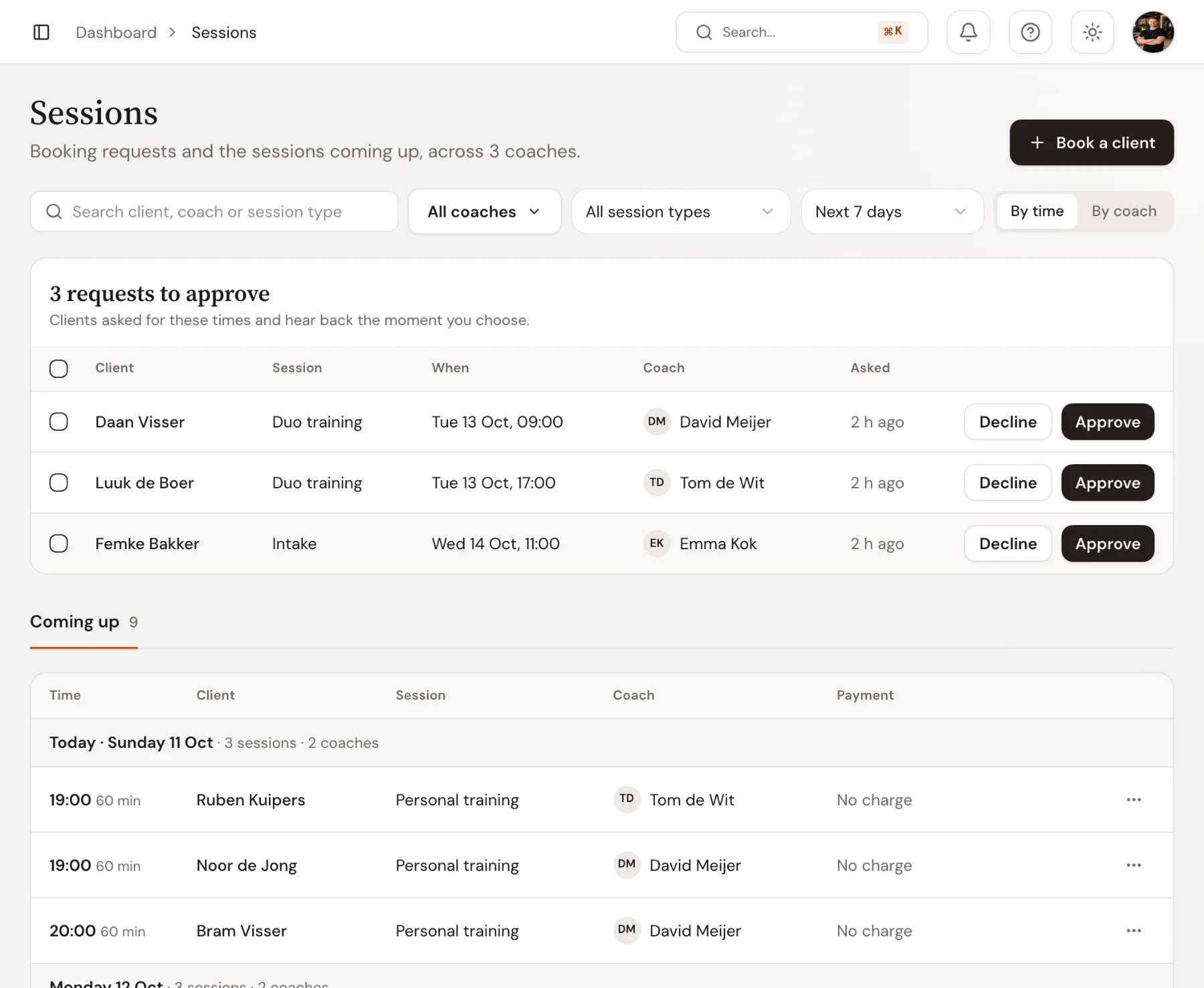
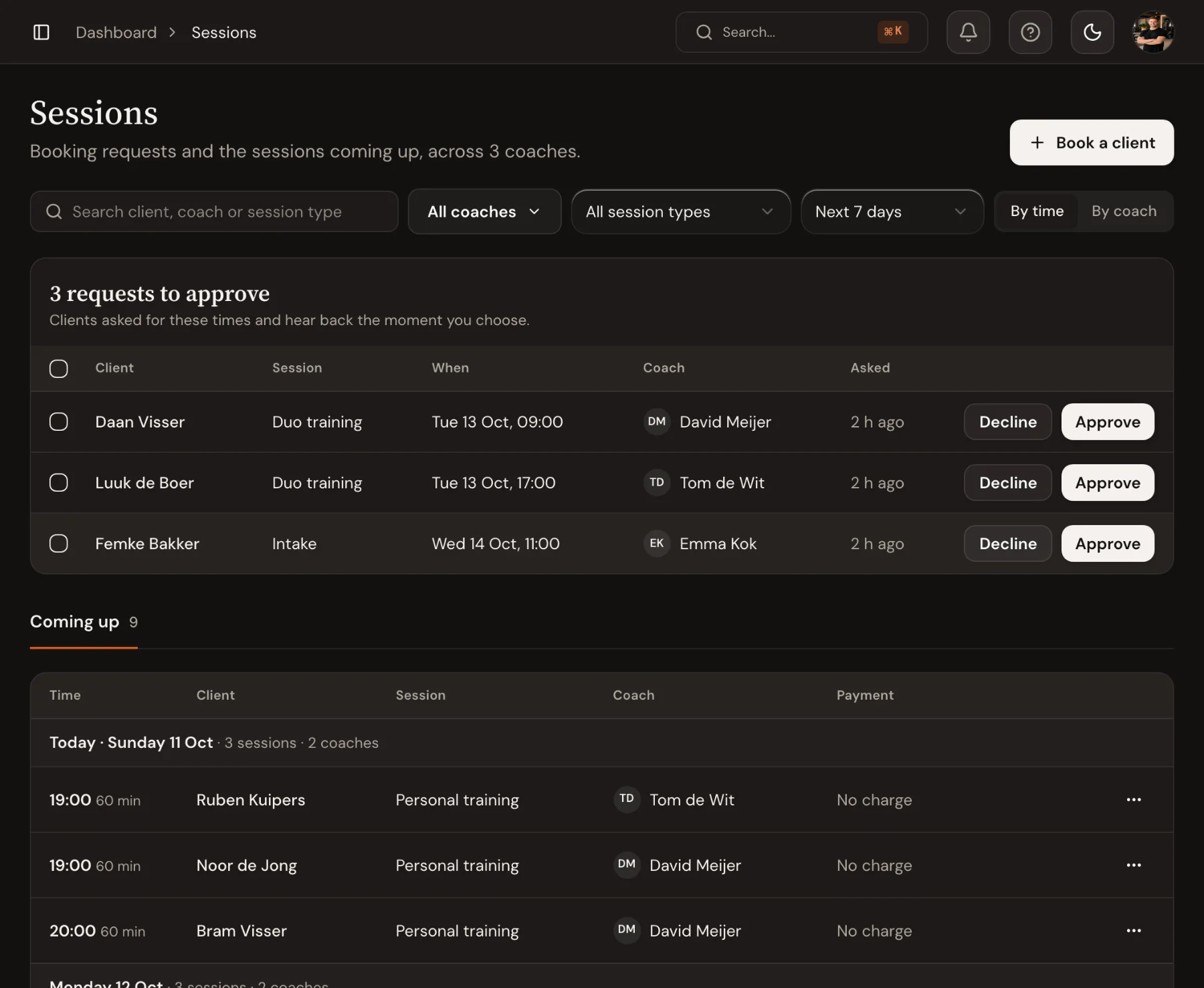
Approve or decline
Choose Approve to confirm the session. It goes into the calendar and the client is told. A session that costs credits uses the credit now.
Choose Decline if the time doesn't work. The client is told, and nothing is charged. Send a short message in the chat with a time that does work, so they can book again.
Several requests at once? Tick them and choose Approve with the number, for example Approve 3.
Don't let requests wait
A request that sits for a day often means a client who books somewhere else. Answer within a few hours, or switch the session type to Auto-confirm under Booking setup if you approve almost everything anyway.
Good to know
- In a studio with many coaches, use the coach filter next to the search to see only your coaches' requests. Trainnode remembers your choice; the line under the title says how many requests there are for other coaches.
- Each coach can choose their own approval setting for a session type, so one coach can auto-confirm while another approves by hand.
- Unpaid bookings are held for the time set under Hold unpaid bookings for on the session type, then the time is released.

 Book 30 minutes with David