Add your logo and studio colours to the app
Upload your studio logo and pick two colours, so the Trainnode app your clients use looks like your studio. Takes two minutes.
Trainnode team
1 min read
Your clients open the app many times a week. With your logo and colours, it feels like your studio's app, not someone else's. Every studio can do this, on every plan.
Open Branding
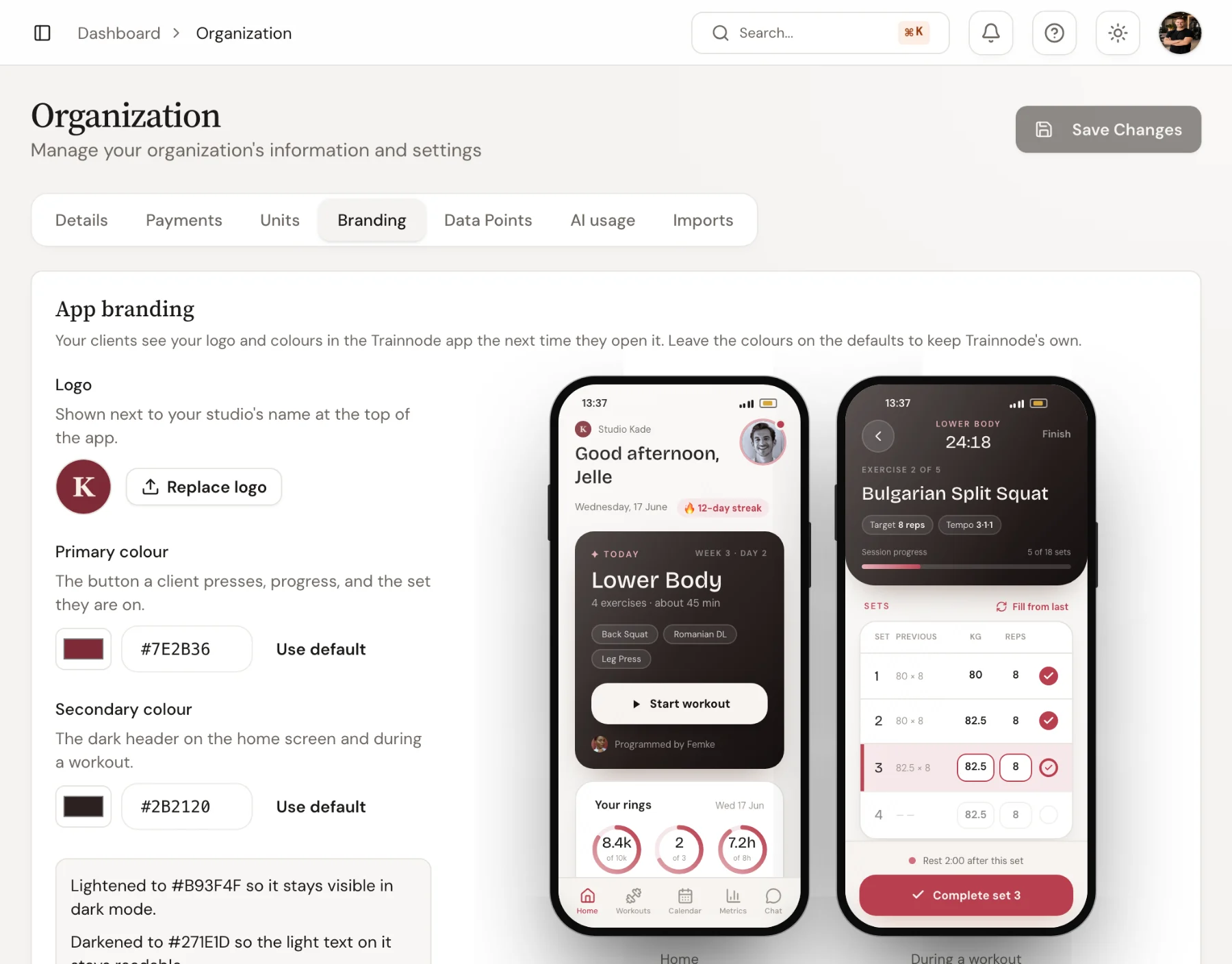
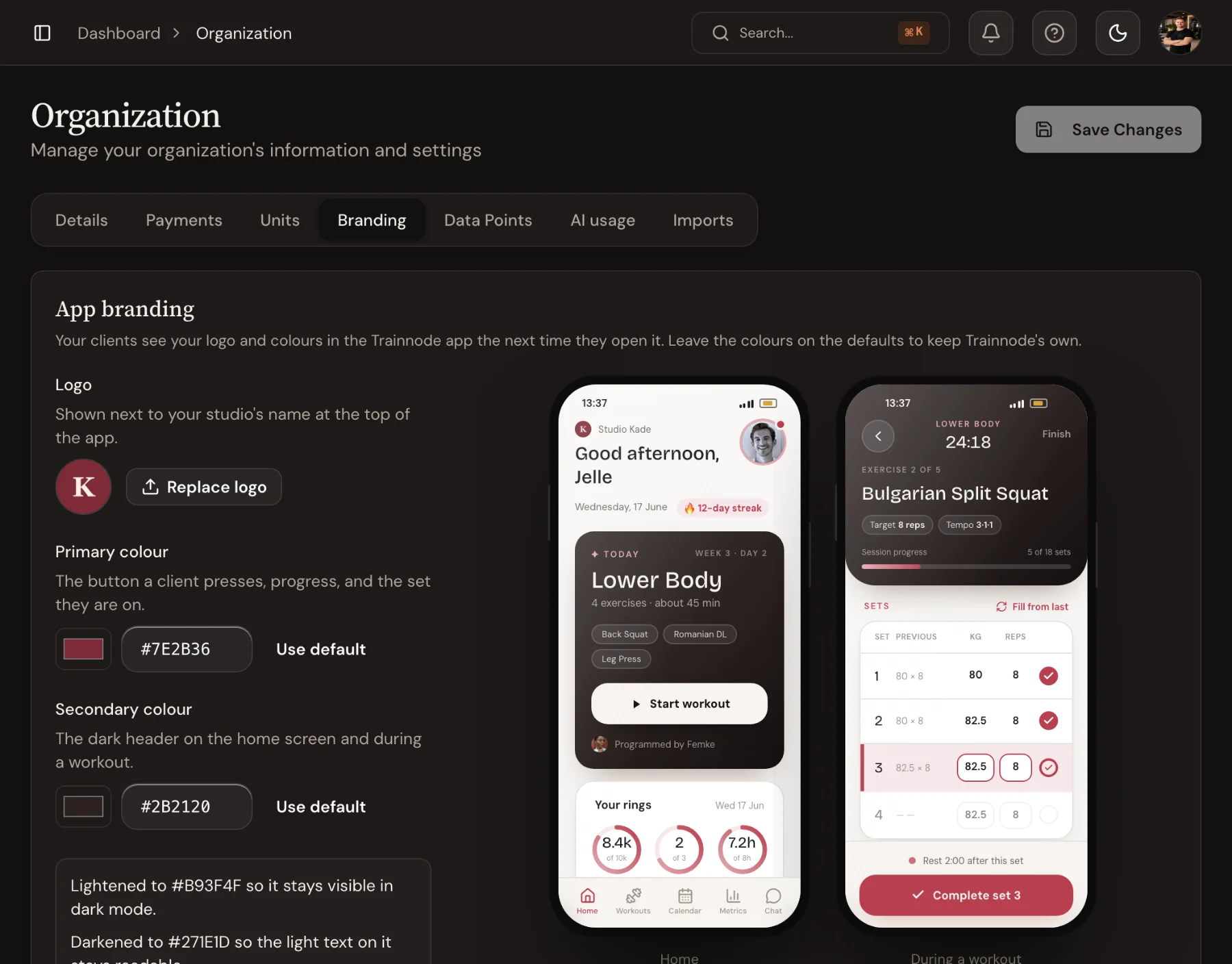
Go to Organization and choose the Branding tab. On the right you see the app's home screen and workout screen in your colours, and they update while you change them.
Upload your logo
Choose Upload logo. It appears next to your studio's name at the top of the app, in a small circle, so a square logo or an icon works best. A full wordmark becomes too small to read.
Pick two colours
- Primary colour: the buttons clients press, progress, and the set they're on.
- Secondary colour: the dark header on the home screen and during a workout.
Type a hex code, such as
#7E2B36, or use the colour picker. Use default brings back Trainnode's own colours.Trainnode adjusts a colour that would be hard to read, for example by darkening it so white text stays readable or lightening it for dark mode, and tells you what it changed. It also warns you when a colour is close to the red used for errors.
Save
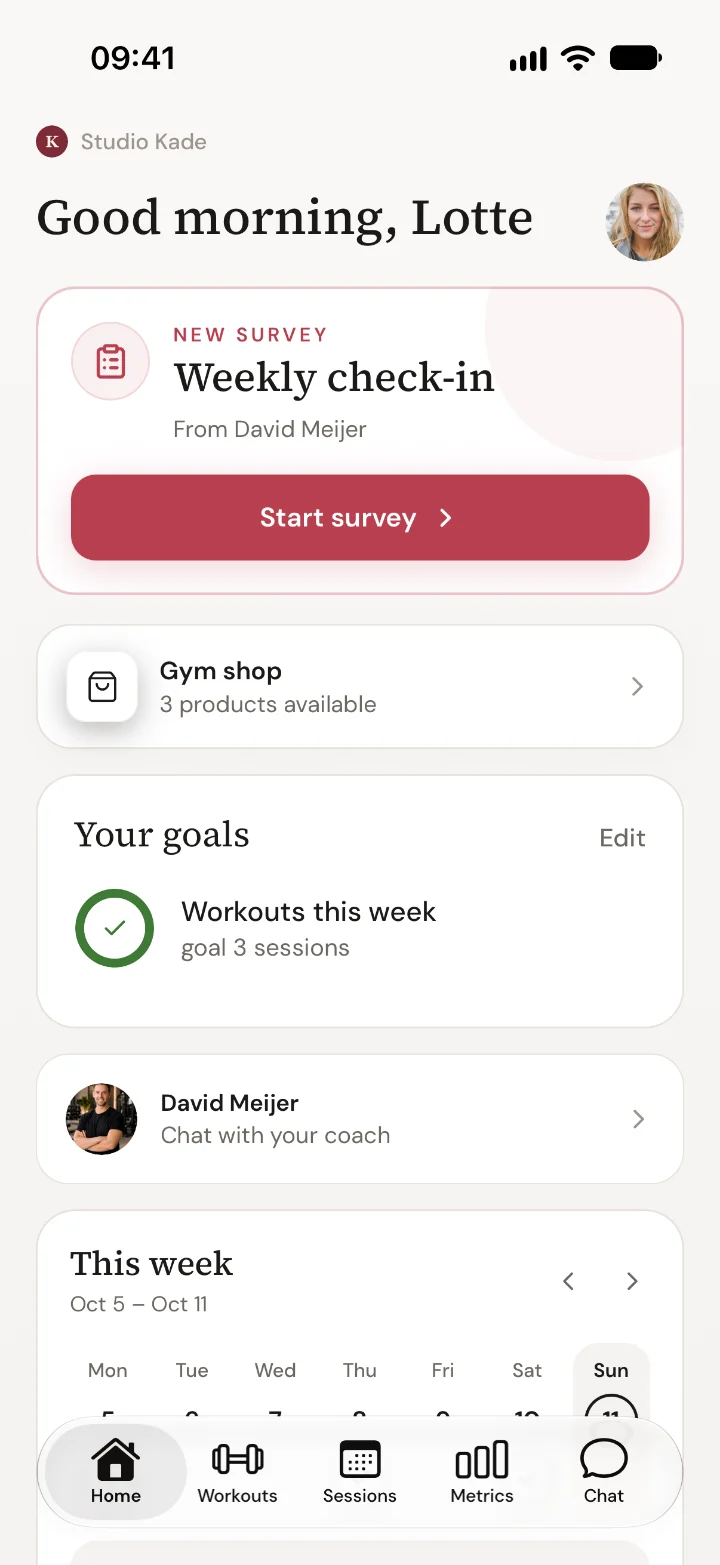
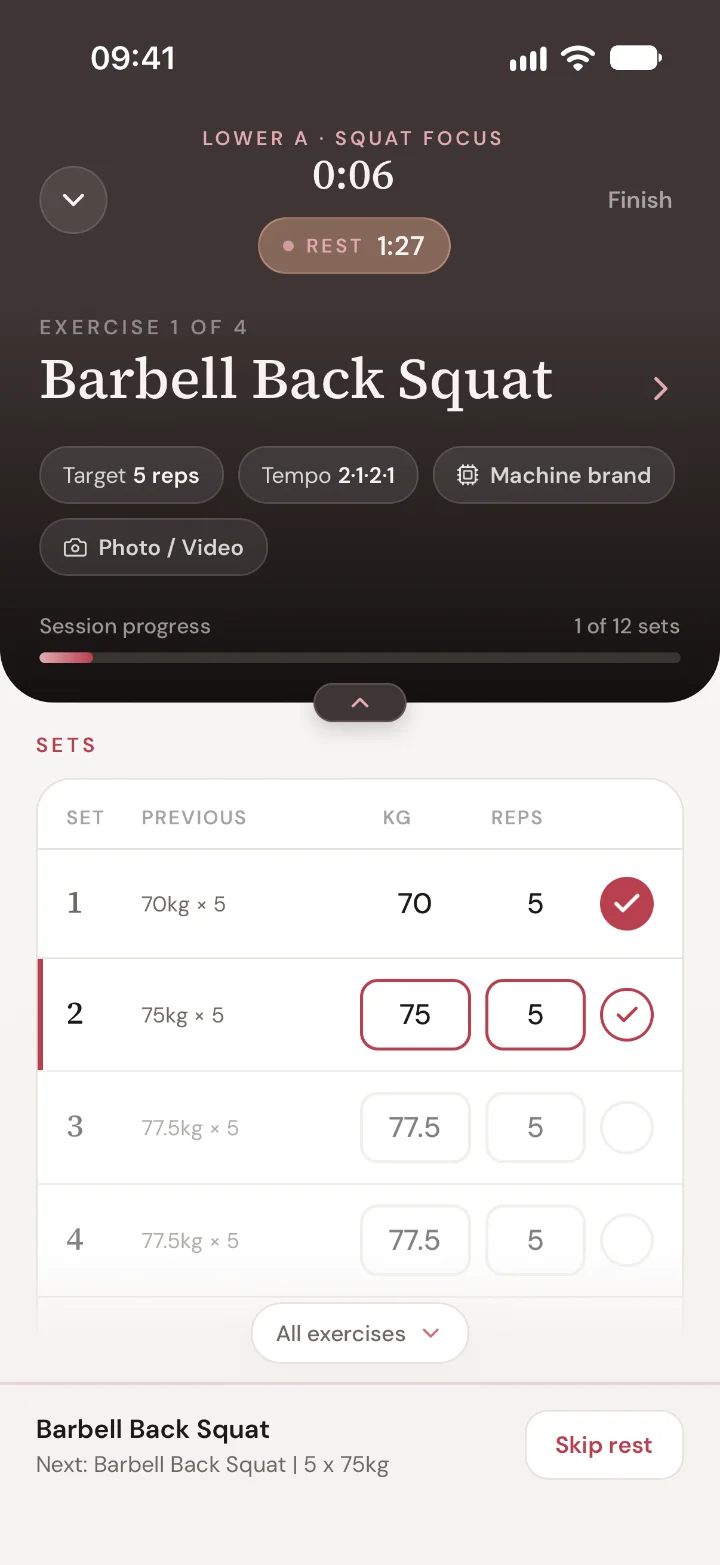
Choose Save changes. Clients see your logo and colours the next time they open the app.
Good to know
- The sign-in screen and the app icon stay Trainnode's, because clients see them before they're linked to your studio.
- Notification icons, the home screen widgets and the Live Activity on the lock screen also stay in Trainnode's colours.

 Book 30 minutes with David