Next session targets
Progressive overload, set from what they actually lifted.
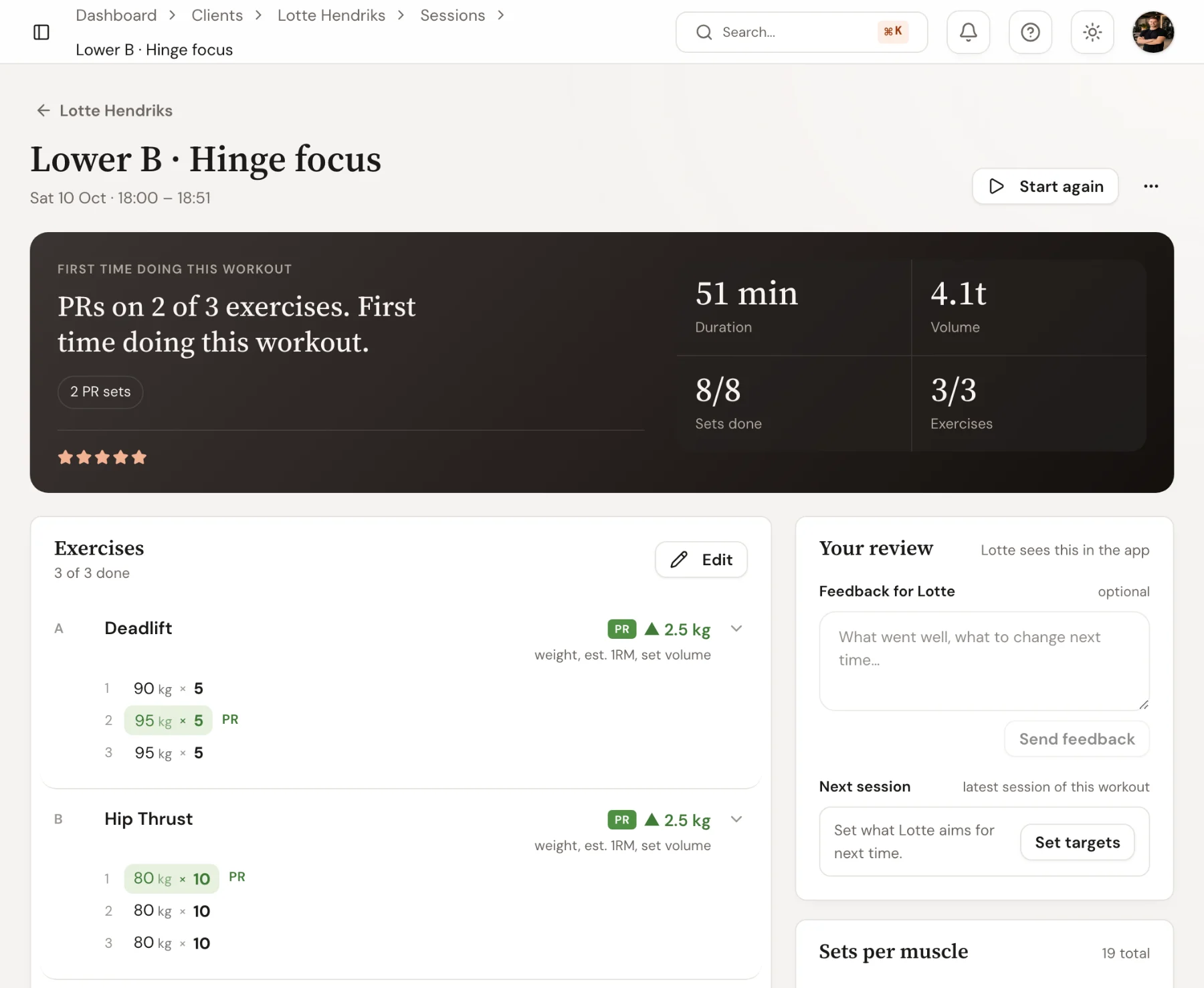
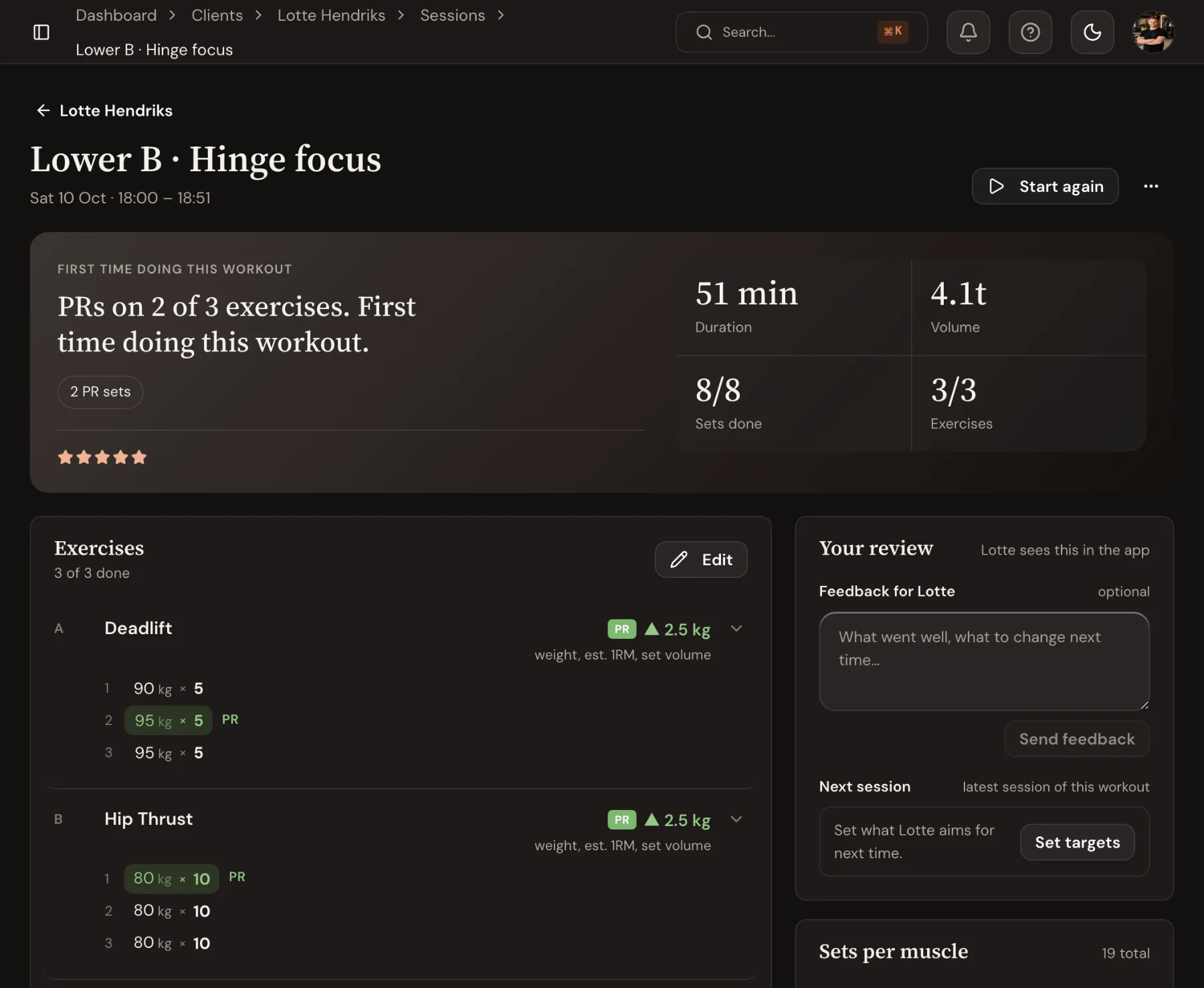
After a session, open the targets for next time beside what the client did and raise them with one tap. Or tell Trainnode to add 2.5 kg by itself when every set hits. The client sees your new target on the set itself.
14-day free trial · No credit card
Review
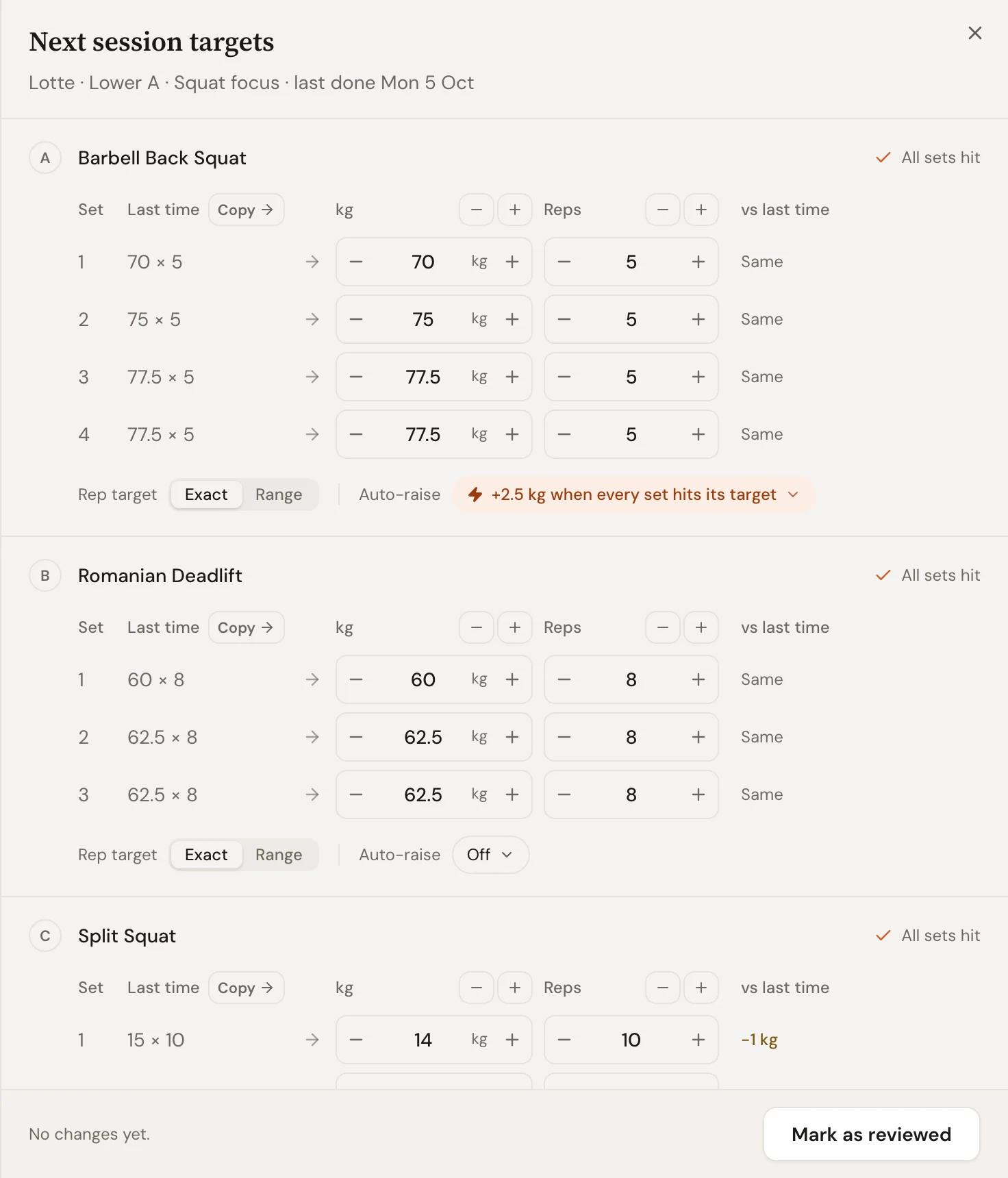
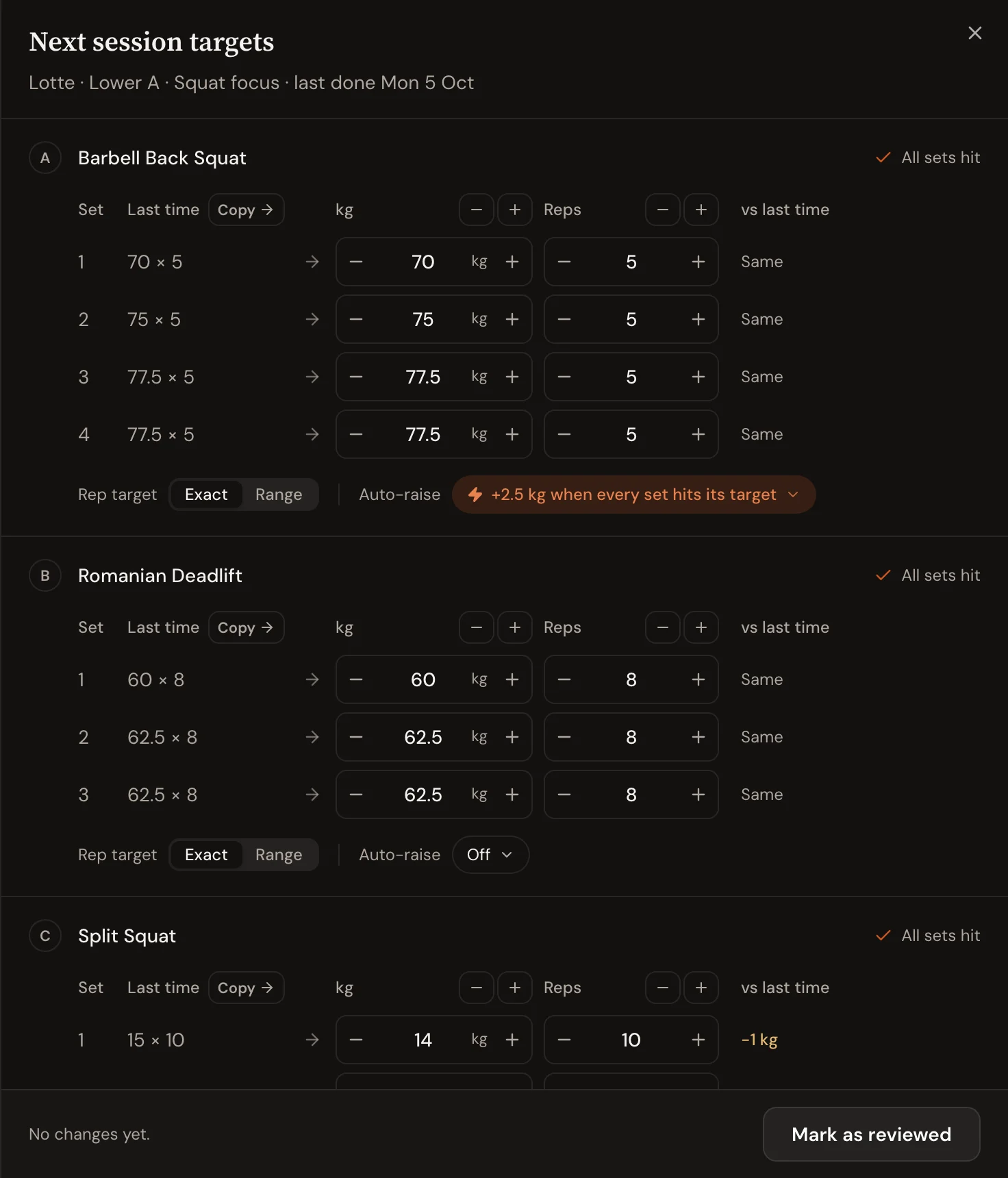
Next time’s targets, next to last time’s sets.
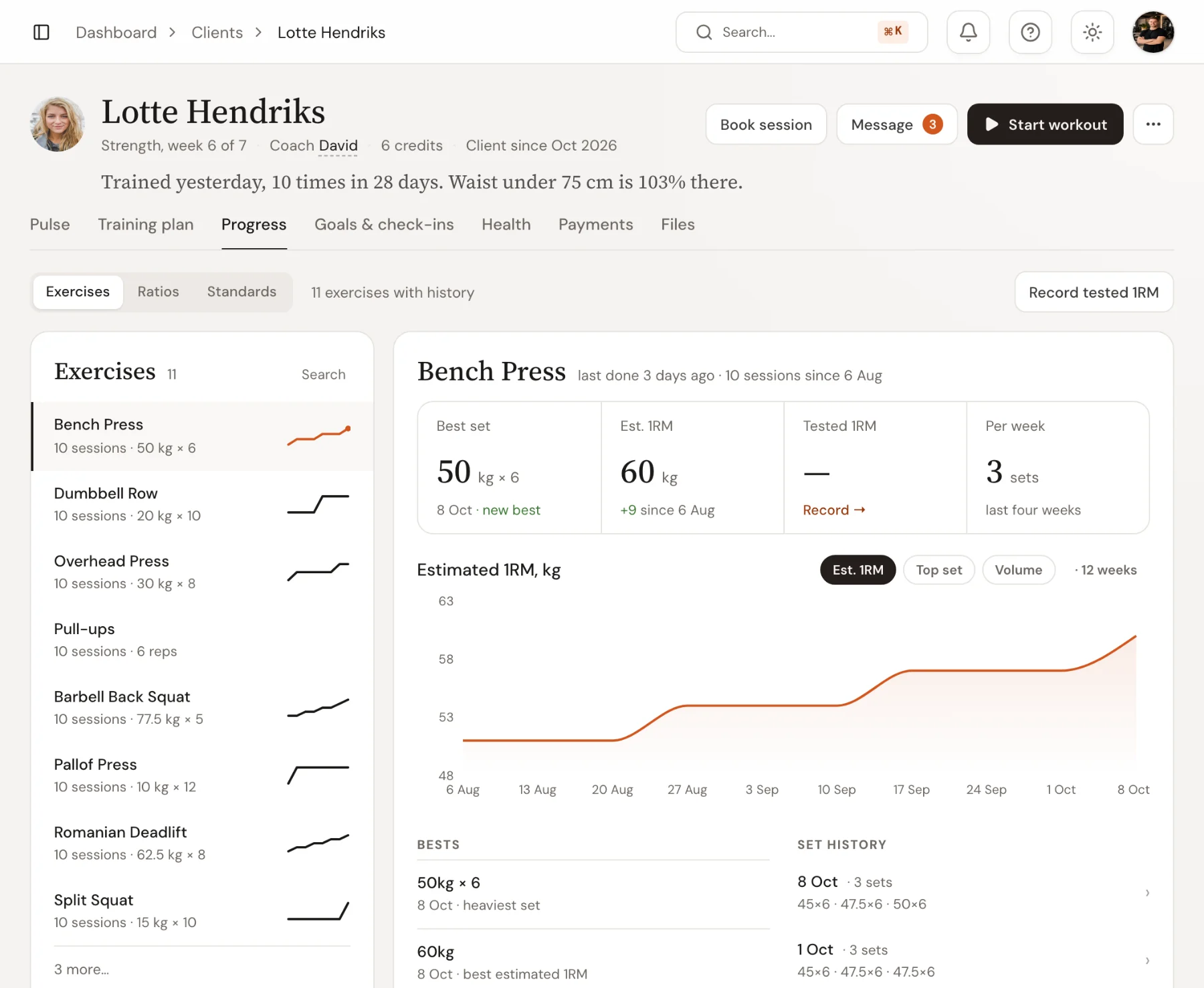
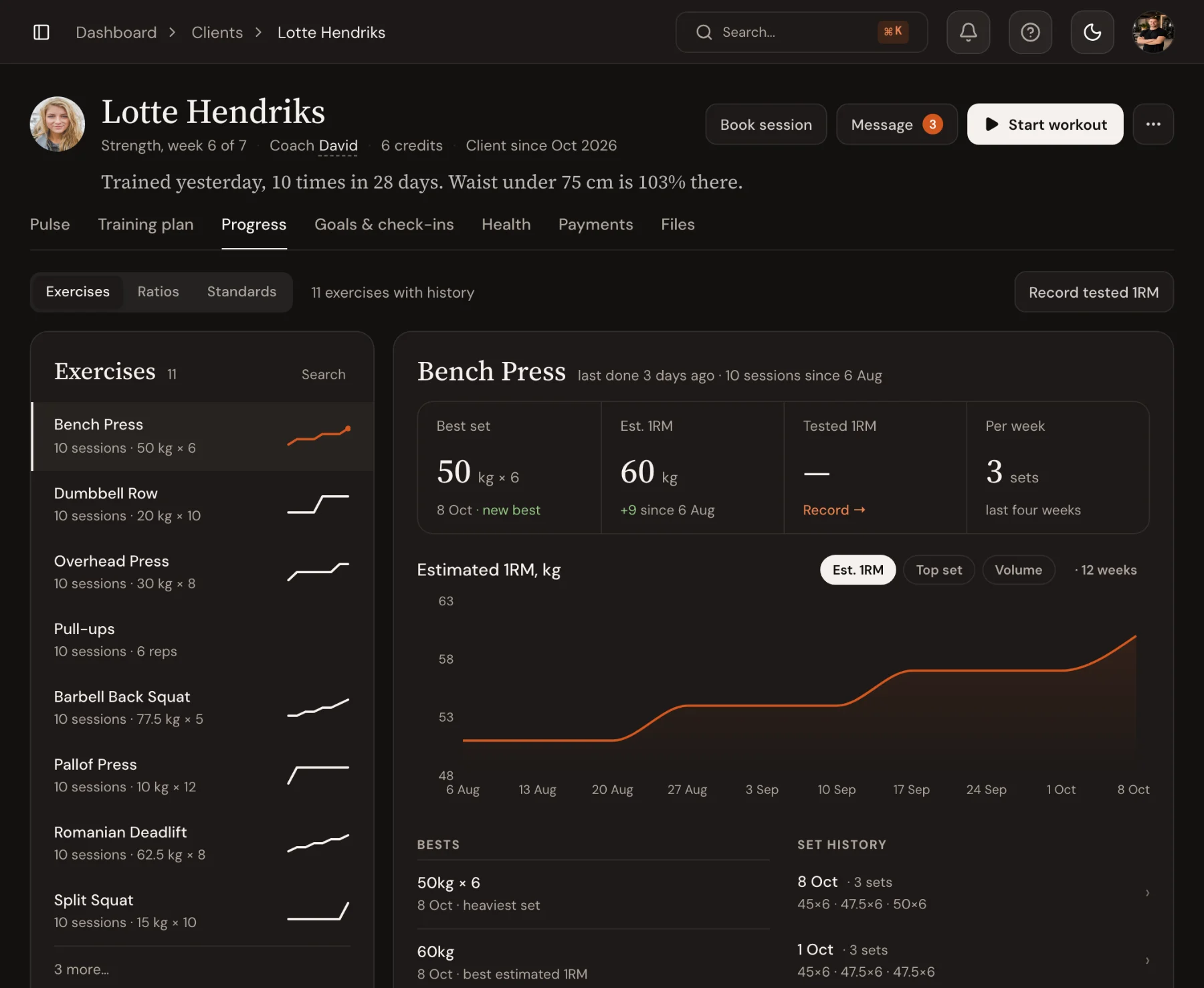
The latest session of each workout has Set targets. It lists each exercise with what the client logged beside the target for next time, so raising the squat or keeping the deadlift is one decision per exercise, not a spreadsheet.
- Last time and next time side by side, per set
- Plus or minus a step for every set at once
- Exact reps or a range, per exercise
Automatic raise
Let the weight go up by itself, where you choose.
Turn on automatic raise for an exercise and pick the rule: a weight or rep step, after every session or only when every set hit its target, with an optional limit. It is off unless you turn it on, it is labelled wherever it acts, and you can undo any raise.
- By weight or by reps, in the step you choose
- After every session, or only when every set hit
- An optional stop-at limit and an undo
In the workout
Clients start from your new numbers.
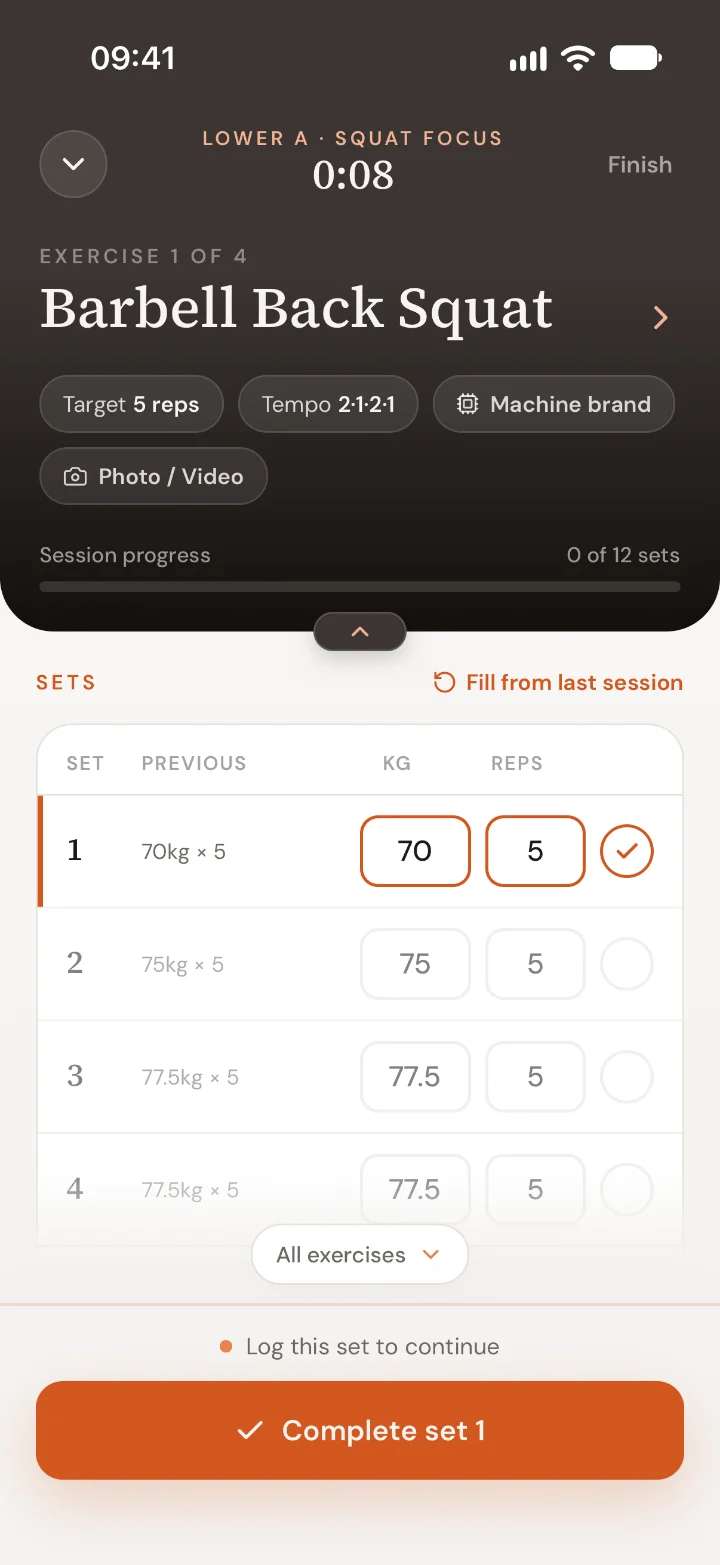
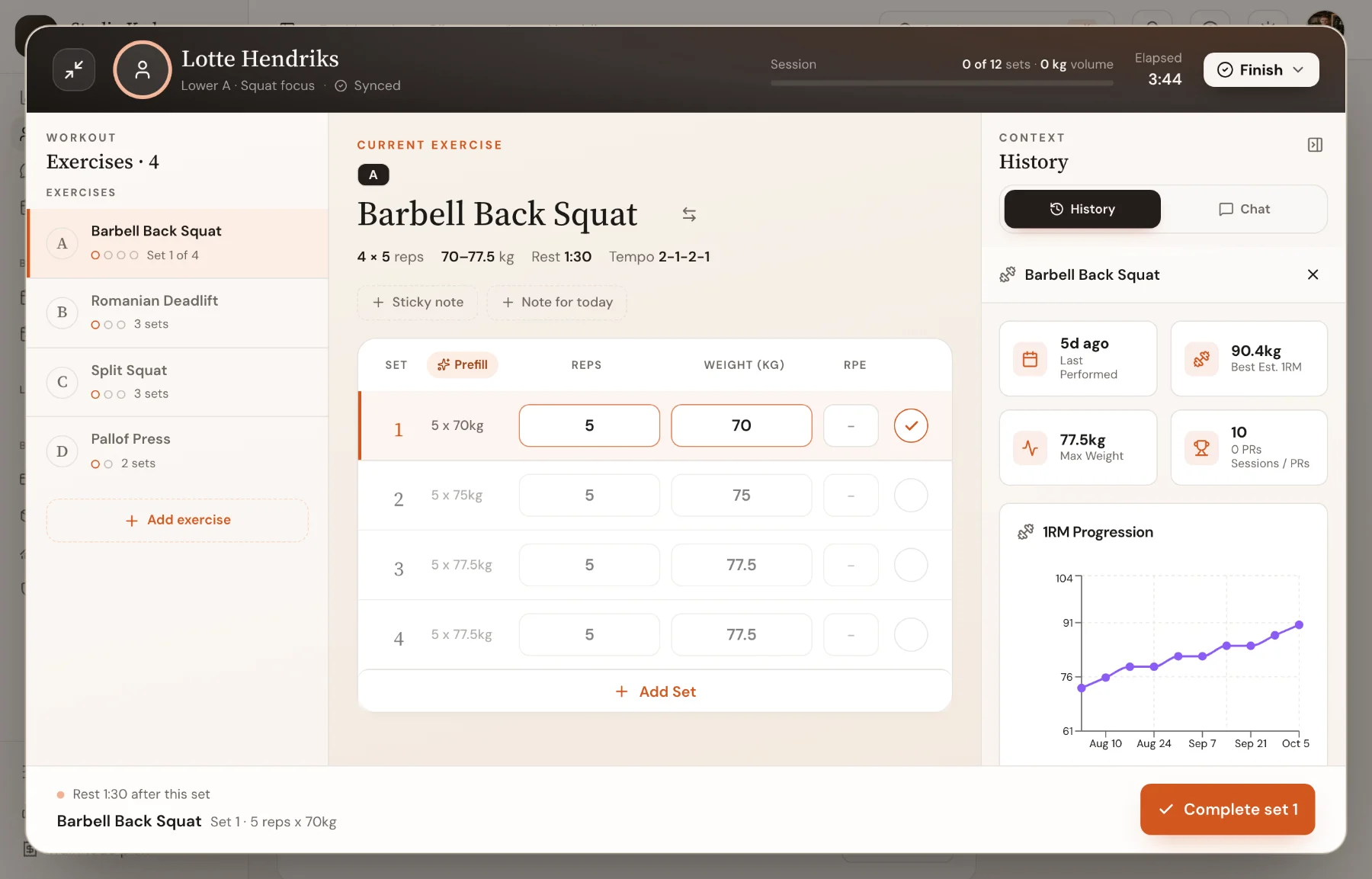
When you raised a target, the sets in the client’s workout start at your numbers and say so. They can still pick last time’s weight for that session, and automatic raise measures their sets against your target.
- Sets start at the coach’s target
- Last time’s numbers one tap away
- The choice counts for that session only
Frequently asked questions
- Does Trainnode suggest new targets?
- No. You set them, or you set the rule. Trainnode only raises a weight by itself on exercises where you turned automatic raise on.
- What if a client has different weights per set?
- Pyramids and ramps keep their shape: a raise moves every set by the same step, and a stop-at limit checks the heaviest set.
- Can I undo an automatic raise?
- Yes. Every raise is labelled with where it came from and can be undone.
- Where do I turn automatic raise on?
- In the workout editor, in an exercise’s settings, or for many exercises at once with Apply settings. On a template it is copied to each client it goes to.
Works together with
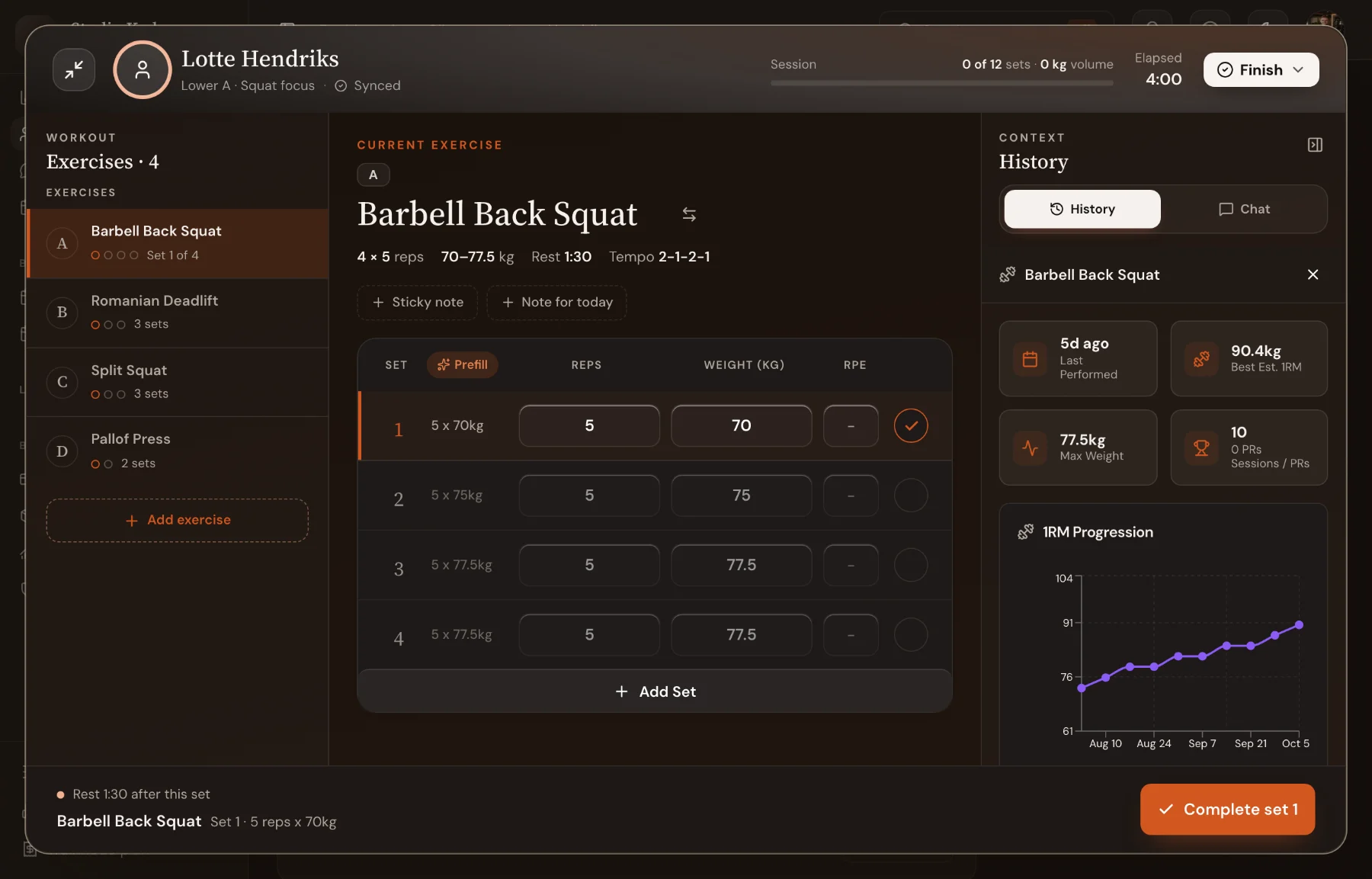 Session TrackingCoach clients live from the dashboard or let them train solo in the app. Every set lands in one place, PRs are flagged and your review reaches their phone.Learn more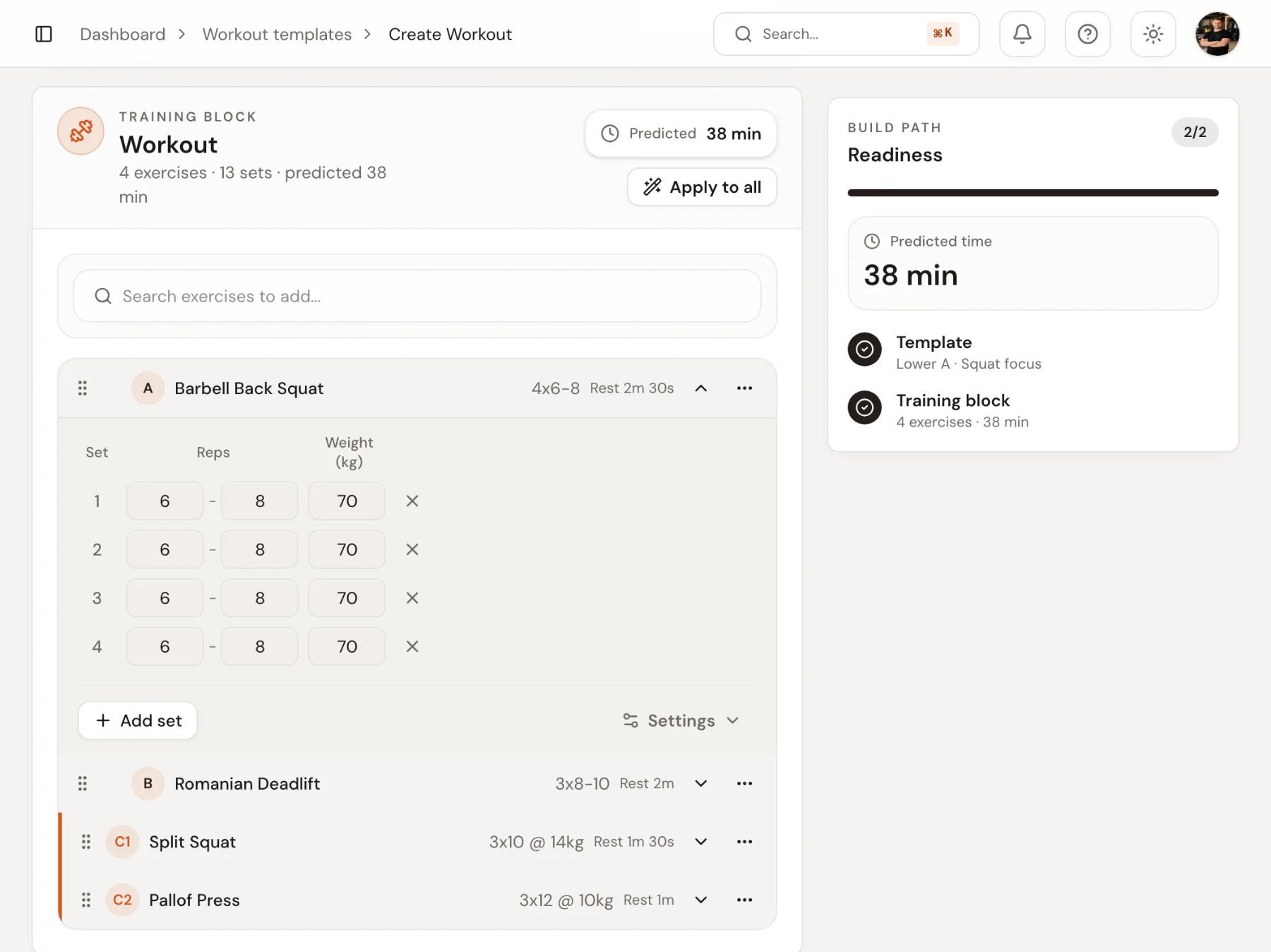
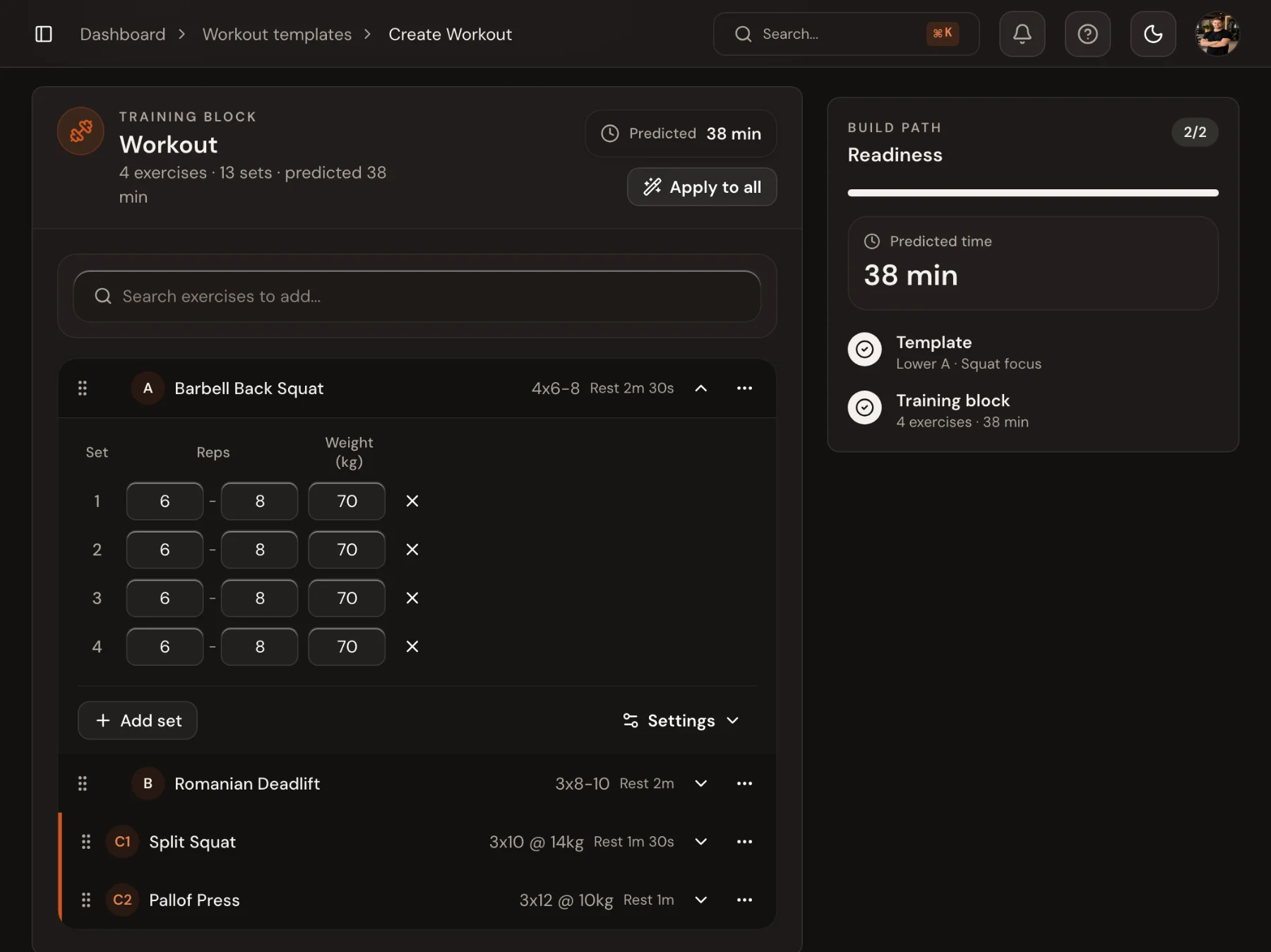 Workout BuilderBuild workouts set by set with tempo, rest, RPE and supersets, reuse them as templates and plan them in phases. Clients get each set on their phone.Learn more
- Progress TrackingStrength, volume and estimated 1RM per exercise, with PRs flagged automatically, next to body metrics and strength ratios. Results your clients see too.Learn more
Ready to coach with less admin?
Start your free trial today, or see everything Trainnode does.