Add a food that isn’t found yet in the Trainnode app
When a barcode or search finds nothing, photograph the nutrition label or type the numbers, check them and save the product for everyone at your studio.
Trainnode team
1 min read
Not every product is in the food list yet. Add it once from the label on the pack, and everyone at your studio can scan it straight in after that.
Start from the barcode or the search
If a scanned barcode isn't known, the app says so and offers Scan the nutrition label or Type the numbers. From search, tap Add a food from the label at the bottom.
Photograph the nutrition table
Fit the whole table in the frame; flat and sharp works best. The numbers are read from your photo and filled in for you. The photo stays on your phone.
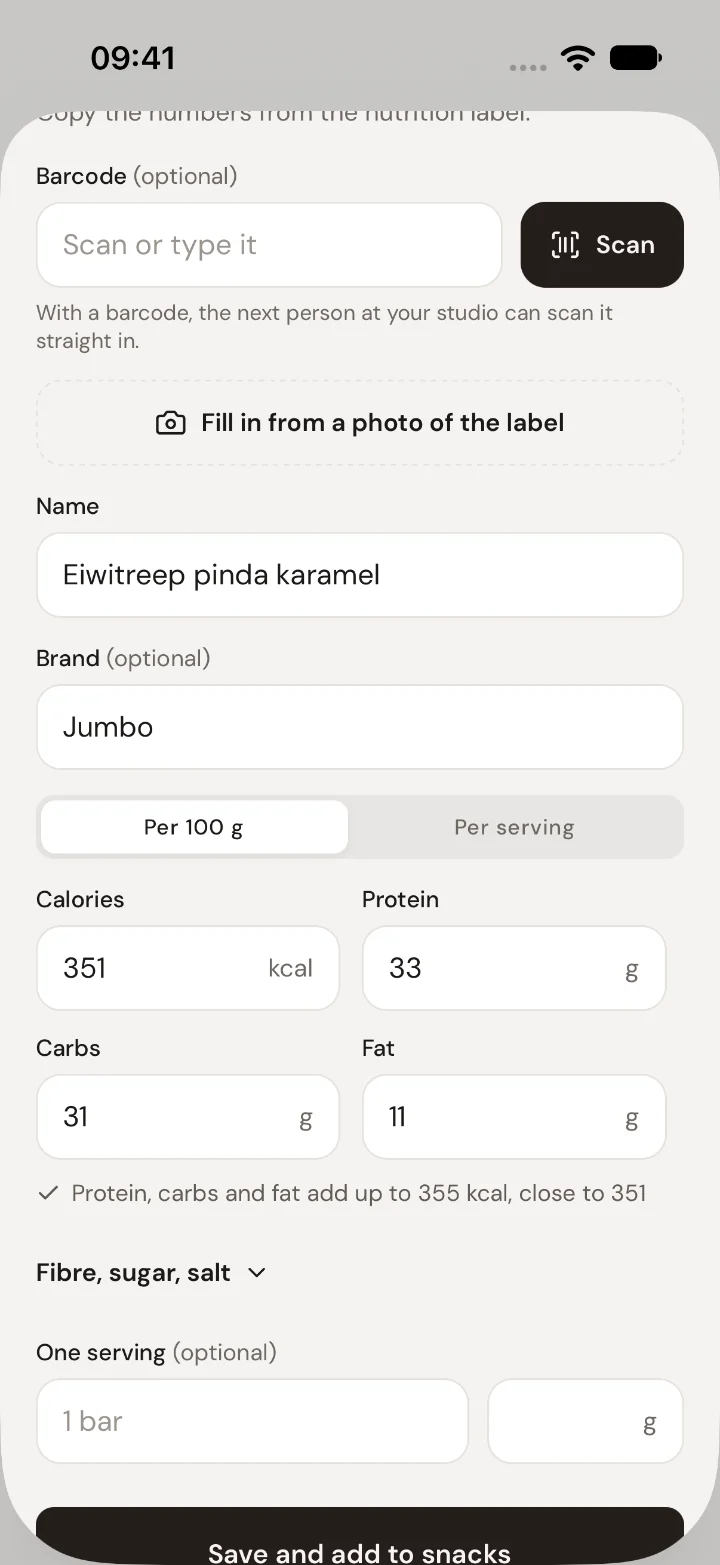
Check the numbers and save
Compare the numbers with the pack, especially energy and protein, and add a name and brand. If protein, carbs and fat don't add up to the energy, the app tells you so you can check. Then save and add it to your meal.
Good to know
- No camera? Tap Type the numbers instead and copy them from the pack.
- Numbers on a product look wrong? Tap the product, then Fix them under "Numbers different on your pack?". The fix holds for everyone at your studio.

 Book 30 minutes with Coach David